Apple iPhone 15
Apple iPhone 15

Apple iPhone 15

iOS 26

Select FaceTime settings on your Apple iPhone 15 iOS 26

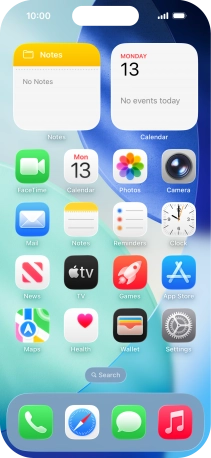
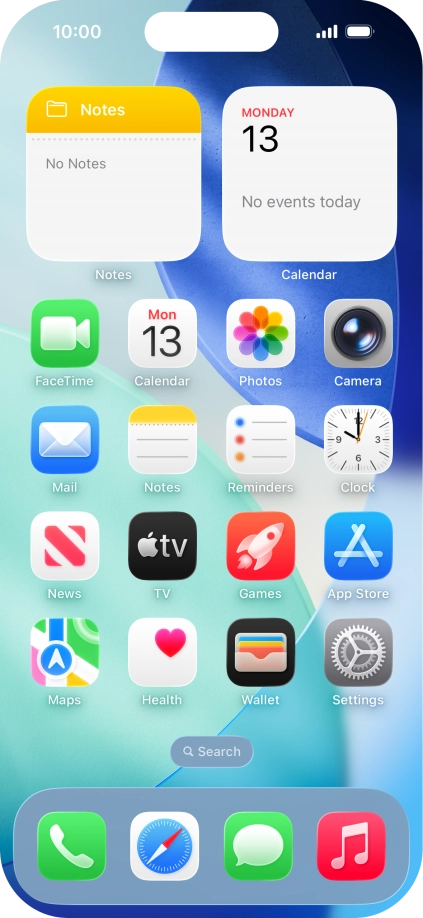
You can make a video call to another device which supports FaceTime. To select settings for FaceTime, you need to activate your Apple Account on your phone.

Step 1 of 17

1. Find "FaceTime"

Press Settings.

Step 2 of 17

1. Find "FaceTime"

Press Apps.

Step 3 of 17

1. Find "FaceTime"

Press FaceTime.

Step 4 of 17

2. Turn FaceTime on or off

Press the indicator next to "FaceTime" to turn the function on or off.

Step 5 of 17

3. Select FaceTime permissions

Press the required setting below "Allow FaceTime to Access" and follow the instructions on the screen to allow access for specific apps and functions.

Step 6 of 17

4. Select setting for how you would like to be contacted by others

Press the required setting below "You can be reached by FaceTime at".

You can select the email addresses and phone numbers others can use to contact you using FaceTime.
Step 7 of 17

5. Select caller ID

Press the required setting below "Caller ID".

You can select which phone number or email address to be displayed when you call others using FaceTime.
Step 8 of 17

6. Turn SharePlay on or off

Press SharePlay.

Using SharePlay, you can share your screen, watch films and listen to music with others during a FaceTime call.
Step 9 of 17

6. Turn SharePlay on or off

Press the indicator next to "SharePlay" to turn the function on or off.

Step 10 of 17

6. Turn SharePlay on or off

Press arrow left.

Step 11 of 17

7. Turn display of big picture of speaker on or off

Press the indicator next to "Speaking" to turn the function on or off.

You can set FaceTime to display a big picture of the person currently speaking.
Step 12 of 17

8. Turn FaceTime Live Photos on or off

Press the indicator next to "FaceTime Live Photos" to turn the function on or off.

With Live Photos, the camera takes a series of pictures of the conversation within a number of seconds allowing you to save an animated version of the screen.
Step 13 of 17

9. Turn eye contact during conversation on or off

Press the indicator next to "Eye Contact" to turn the function on or off.

You can set FaceTime to establish natural eye contact during the conversation when you look at the screen instead of the camera.
Step 14 of 17

10. Block or unblock unknown callers

Press the indicator next to "Silence Unknown Callers" to turn the function on or off.

You can set your phone to ignore calls from people not saved in your address book.
Step 15 of 17

11. Block contact

Press Blocked Contacts.

Step 16 of 17

11. Block contact

Press Add Blocked Contact and follow the instructions on the screen to block a contact.

If you don't want to receive FaceTime calls from certain contacts, you can block them.
Step 17 of 17

12. Return to the home screen

Slide your finger upwards starting from the bottom of the screen to return to the home screen.

1. Find "FaceTime"

Press Settings.
Press Apps.
Press FaceTime.

2. Turn FaceTime on or off

Press the indicator next to "FaceTime" to turn the function on or off.

3. Select FaceTime permissions

Press the required setting below "Allow FaceTime to Access" and follow the instructions on the screen to allow access for specific apps and functions.

4. Select setting for how you would like to be contacted by others

Press the required setting below "You can be reached by FaceTime at".
You can select the email addresses and phone numbers others can use to contact you using FaceTime.

5. Select caller ID

Press the required setting below "Caller ID".
You can select which phone number or email address to be displayed when you call others using FaceTime.

6. Turn SharePlay on or off

Press SharePlay.
Using SharePlay, you can share your screen, watch films and listen to music with others during a FaceTime call.
Press the indicator next to "SharePlay" to turn the function on or off.
Press arrow left.

7. Turn display of big picture of speaker on or off

Press the indicator next to "Speaking" to turn the function on or off.
You can set FaceTime to display a big picture of the person currently speaking.

8. Turn FaceTime Live Photos on or off

Press the indicator next to "FaceTime Live Photos" to turn the function on or off.
With Live Photos, the camera takes a series of pictures of the conversation within a number of seconds allowing you to save an animated version of the screen.

9. Turn eye contact during conversation on or off

Press the indicator next to "Eye Contact" to turn the function on or off.
You can set FaceTime to establish natural eye contact during the conversation when you look at the screen instead of the camera.

10. Block or unblock unknown callers

Press the indicator next to "Silence Unknown Callers" to turn the function on or off.
You can set your phone to ignore calls from people not saved in your address book.

11. Block contact

Press Blocked Contacts.
Press Add Blocked Contact and follow the instructions on the screen to block a contact.
If you don't want to receive FaceTime calls from certain contacts, you can block them.

12. Return to the home screen

Slide your finger upwards starting from the bottom of the screen to return to the home screen.

Get information on...

Or choose...