Apple iPhone 17
Apple iPhone 17

Apple iPhone 17

iOS 26

Create Contact Poster on your Apple iPhone 17 iOS 26

You can create a Contact Poster which is shared with other Apple users who have you as a contact, for example when you make calls, send iMessages or share your contact details using NameDrop.

Step 1 of 9

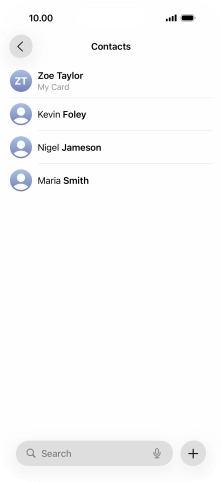
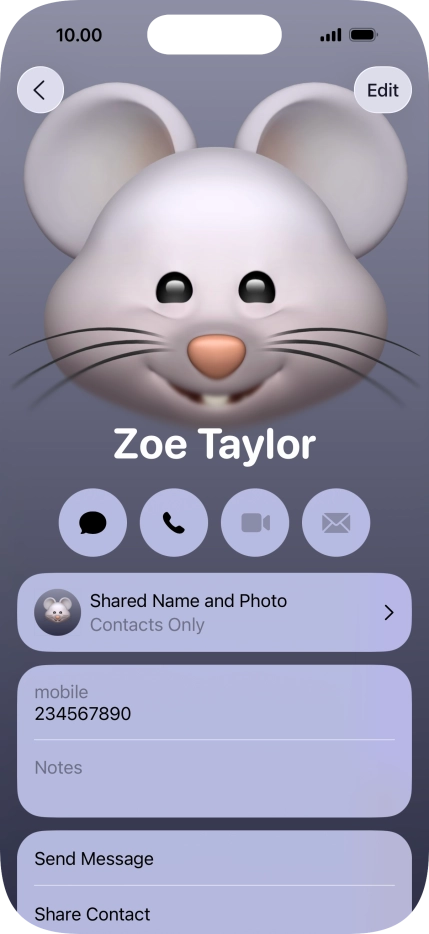
1. Find "Shared Name and Photo"

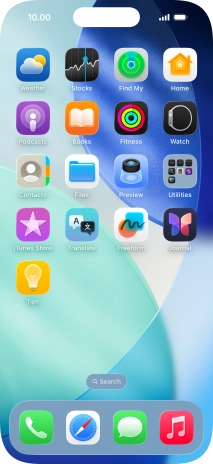
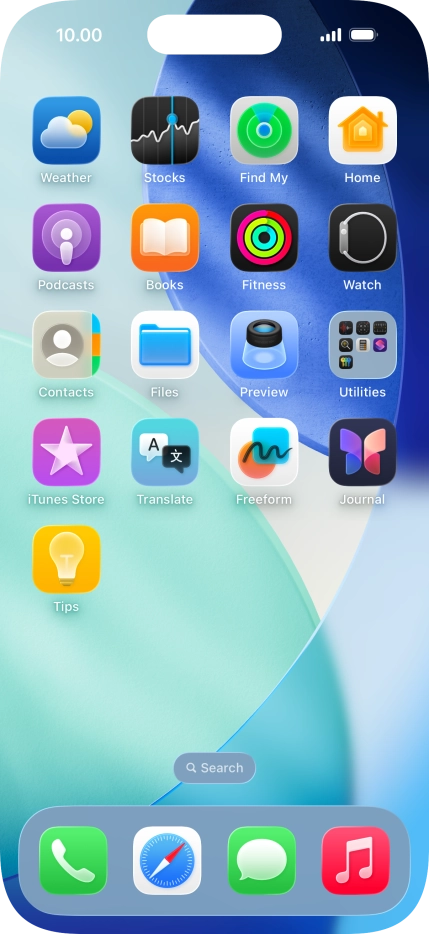
Press Contacts.
Step 2 of 9

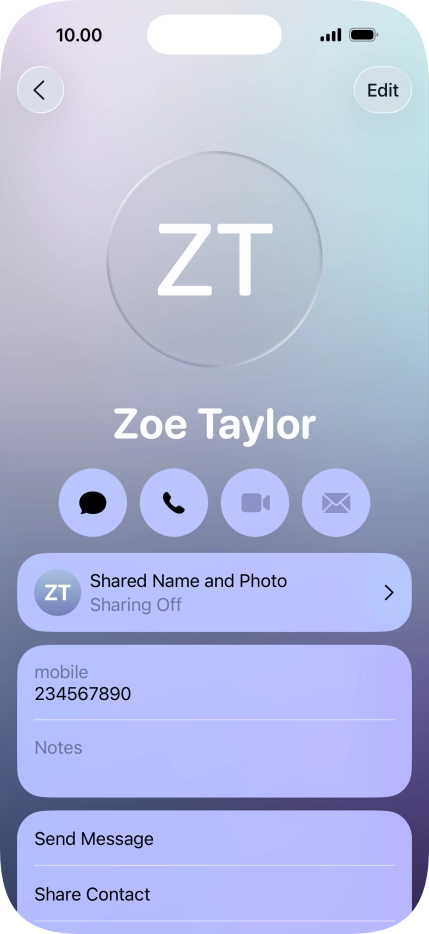
1. Find "Shared Name and Photo"

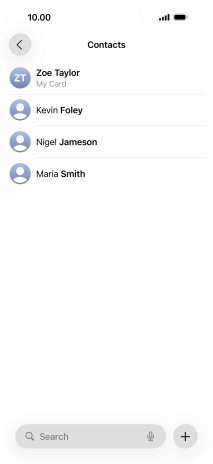
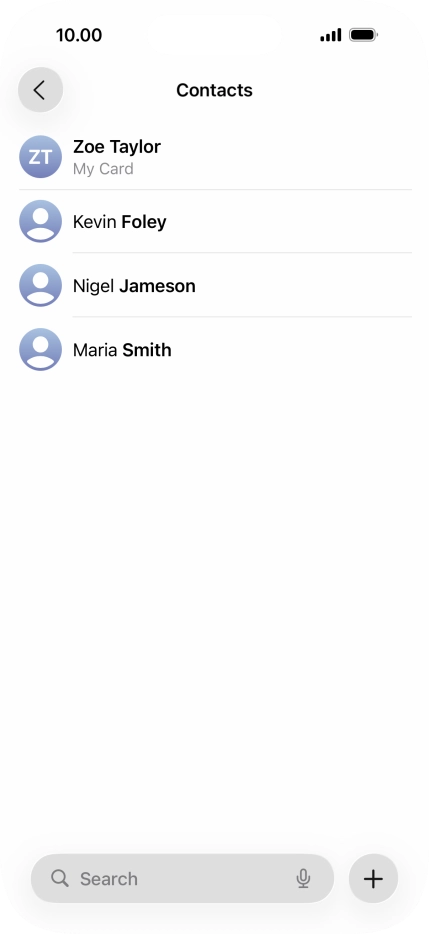
Press My Card.

Step 3 of 9

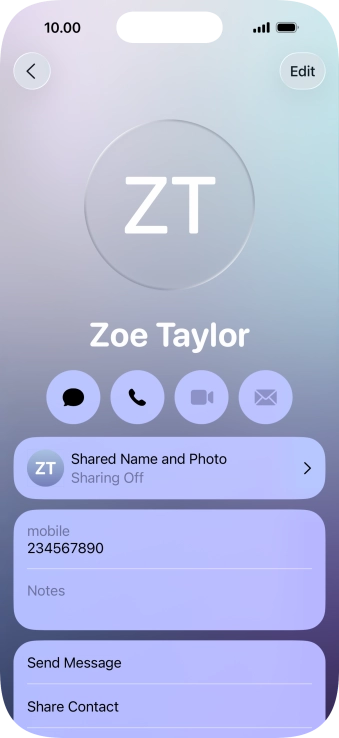
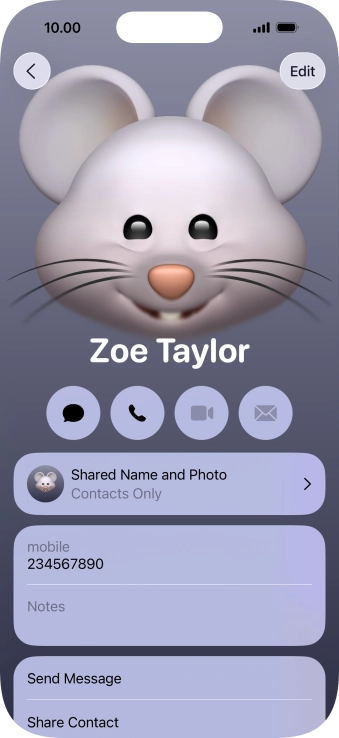
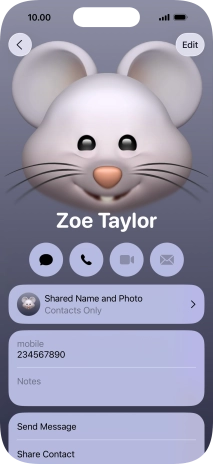
1. Find "Shared Name and Photo"

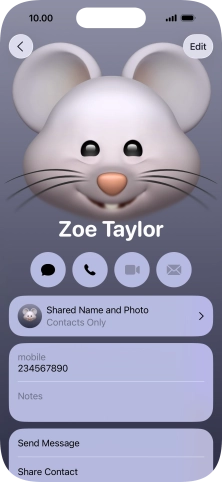
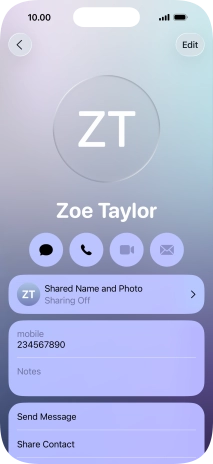
Press Shared Name and Photo.

Step 4 of 9

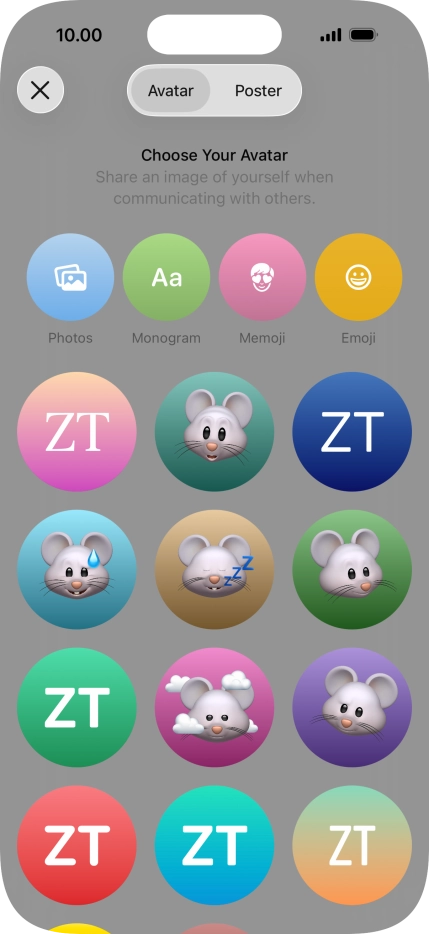
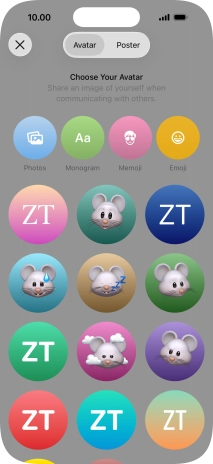
2. Create Contact Poster

Press the required category and follow the instructions on the screen to select and save the required picture to your Contact Poster.

Step 5 of 9

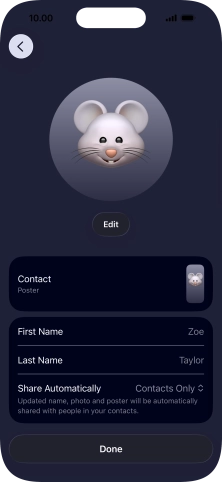
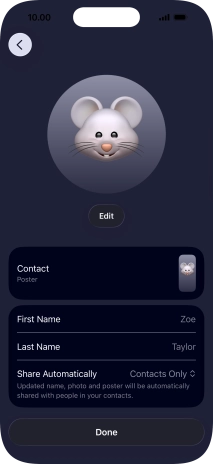
3. Edit name

Press the name fields and follow the instructions on the screen to edit your name on the Contact Poster.

Step 6 of 9

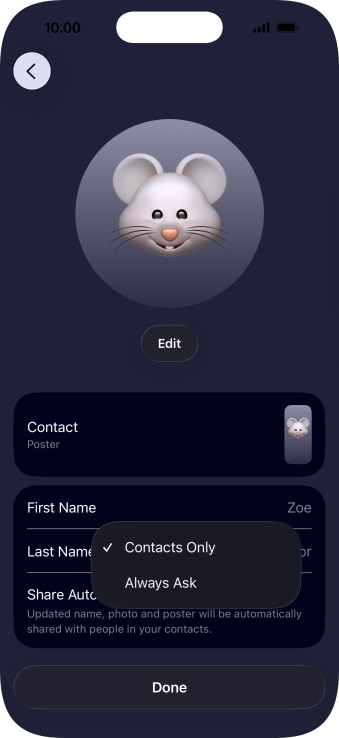
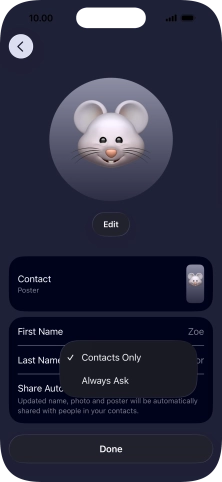
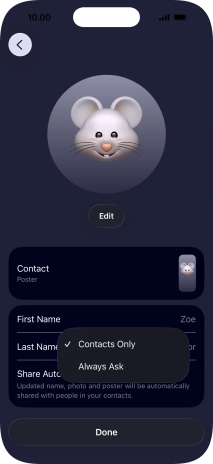
4. Choose Contact Poster sharing setting

Press Share Automatically.

Step 7 of 9

4. Choose Contact Poster sharing setting

Press the required setting.

To select Contact Poster sharing setting, you need to turn on sharing of your name and picture.
Step 8 of 9

5. Save settings

Press Done.

Step 9 of 9

6. Return to the home screen

Slide your finger upwards starting from the bottom of the screen to return to the home screen.

1. Find "Shared Name and Photo"

Press Contacts.
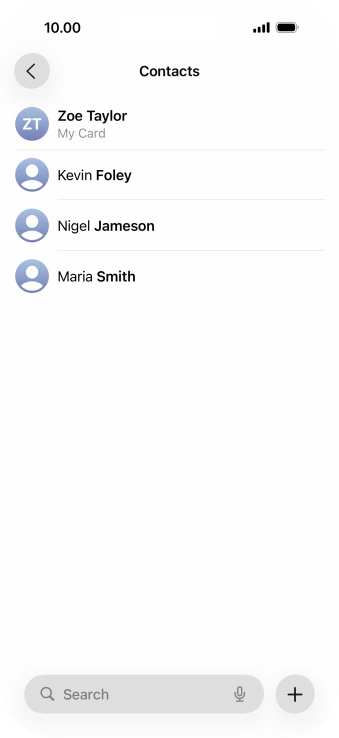
Press My Card.
Press Shared Name and Photo.

2. Create Contact Poster

Press the required category and follow the instructions on the screen to select and save the required picture to your Contact Poster.
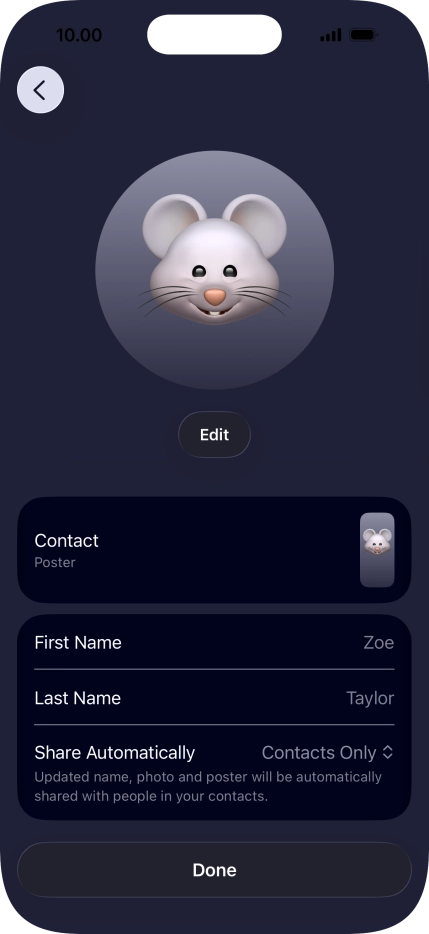
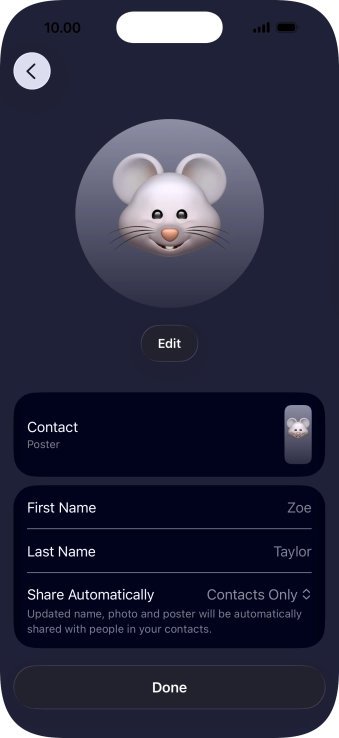
3. Edit name

Press the name fields and follow the instructions on the screen to edit your name on the Contact Poster.

4. Choose Contact Poster sharing setting

Press Share Automatically.
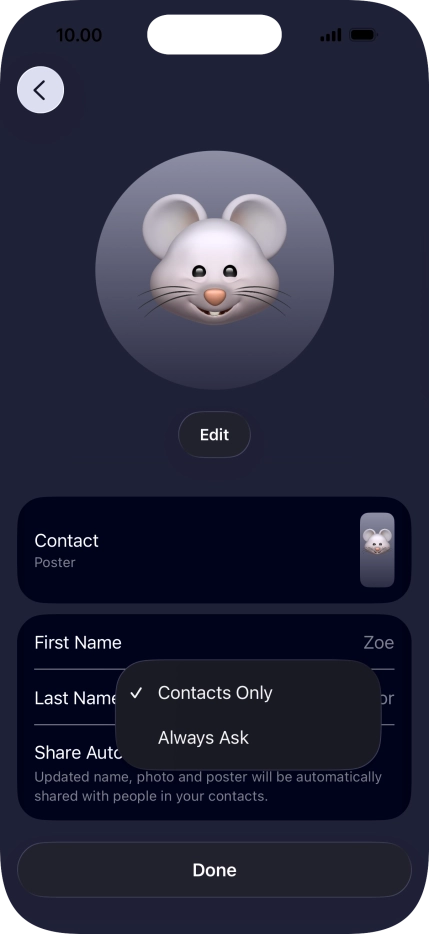
Press the required setting.
To select Contact Poster sharing setting, you need to turn on sharing of your name and picture.

5. Save settings

Press Done.

6. Return to the home screen

Slide your finger upwards starting from the bottom of the screen to return to the home screen.

Get information on...

Or choose...