Apple iPhone 17
Apple iPhone 17

Apple iPhone 17

iOS 26

Turn automatic update of apps on your Apple iPhone 17 iOS 26 on or off

You can select whether your apps should be updated to the newest version automatically or manually. See how to install an app.

Step 1 of 6

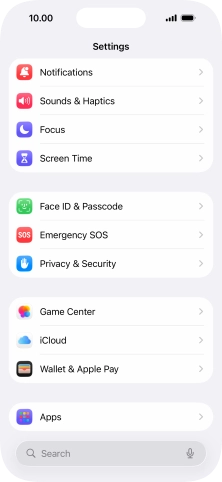
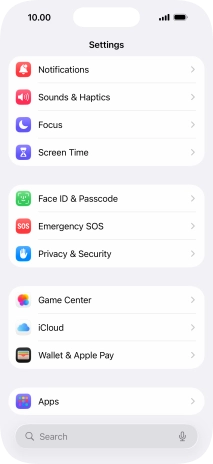
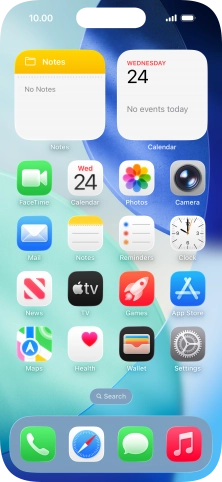
1. Find "App Store"

Press Settings.
Step 2 of 6

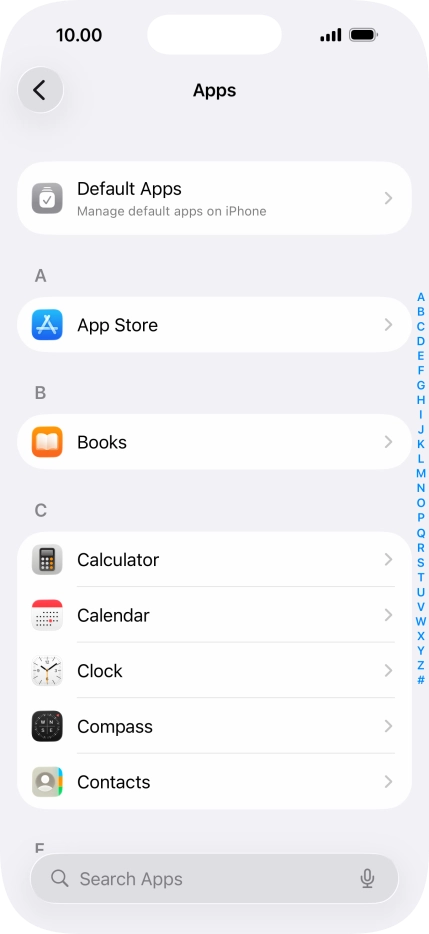
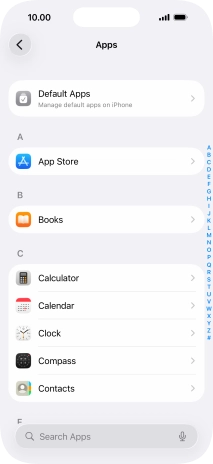
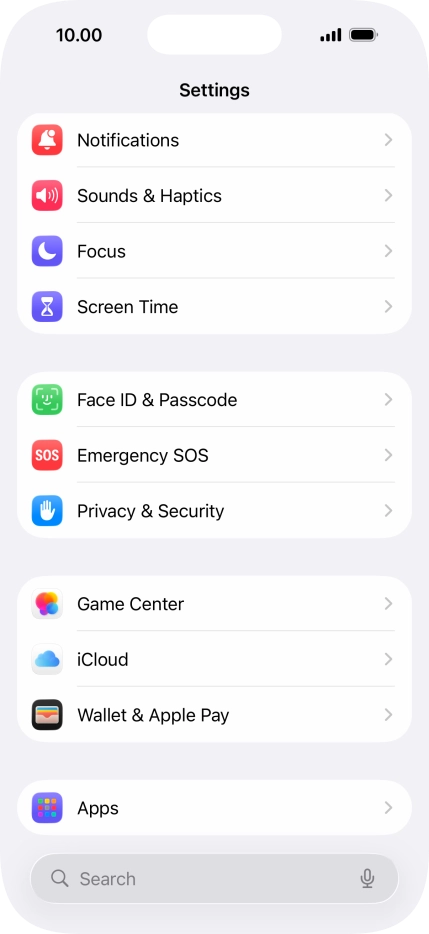
1. Find "App Store"

Press Apps.

Step 3 of 6

1. Find "App Store"

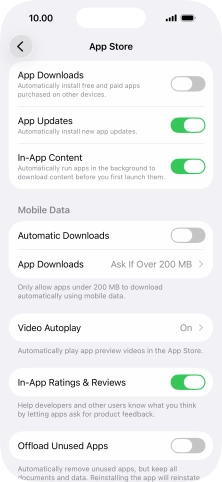
Press App Store.

Step 4 of 6

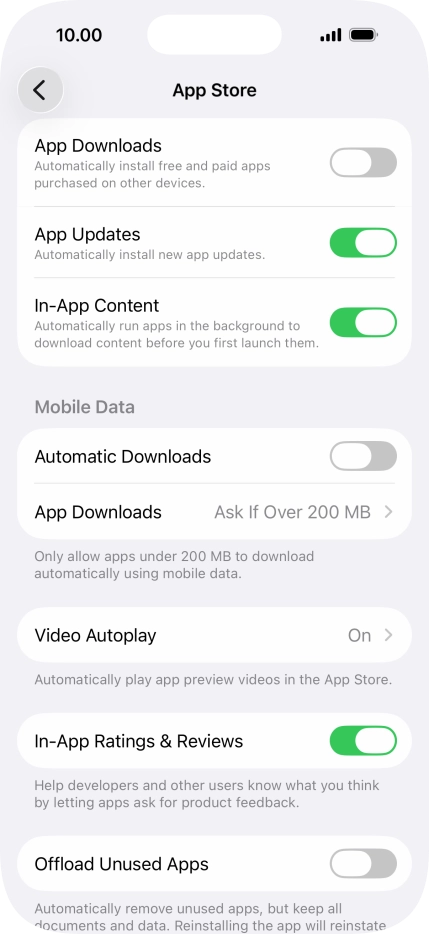
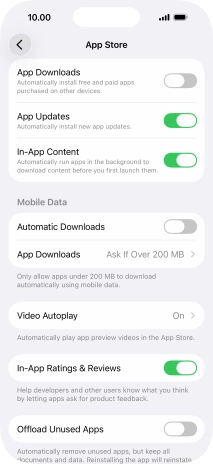
2. Turn automatic update of apps on or off

Press the indicator next to "App Updates" to turn the function on or off.

If you turn on automatic update, your apps are automatically updated via Wi-Fi.
Step 5 of 6

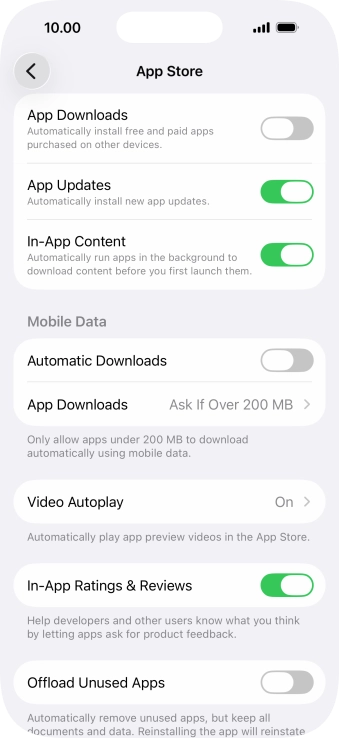
3. Turn automatic update of apps via mobile network on or off

Press the indicator next to "Automatic Downloads" to turn the function on or off.

If you turn on automatic update of apps via mobile network, your apps are automatically updated via the mobile network when no Wi-Fi networks are within range.
Step 6 of 6

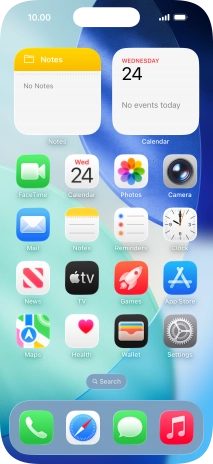
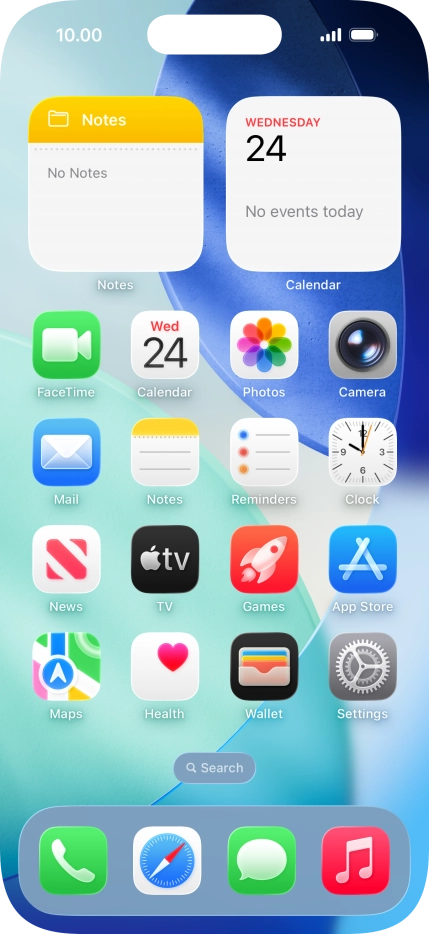
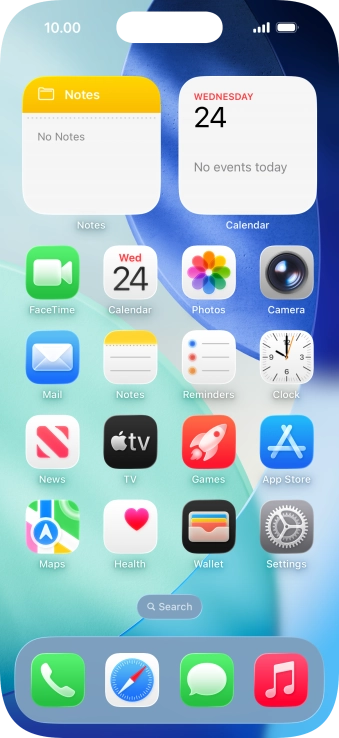
4. Return to the home screen

Slide your finger upwards starting from the bottom of the screen to return to the home screen.

1. Find "App Store"

Press Settings.
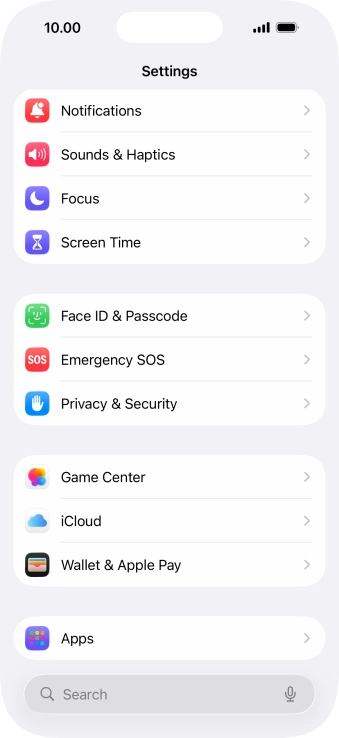
Press Apps.
Press App Store.

2. Turn automatic update of apps on or off
Press the indicator next to "App Updates" to turn the function on or off.
If you turn on automatic update, your apps are automatically updated via Wi-Fi.

3. Turn automatic update of apps via mobile network on or off

Press the indicator next to "Automatic Downloads" to turn the function on or off.
If you turn on automatic update of apps via mobile network, your apps are automatically updated via the mobile network when no Wi-Fi networks are within range.

4. Return to the home screen

Slide your finger upwards starting from the bottom of the screen to return to the home screen.

Get information on...

Or choose...