Apple iPhone 17
Apple iPhone 17

Apple iPhone 17

iOS 26

Turn Offload Unused Apps on your Apple iPhone 17 iOS 26 on or off

You can set your phone to automatically remove apps you haven't used for a long time to free up phone memory. All app settings and data are saved and will be restored when you reinstall the app from App Store.

Step 1 of 5

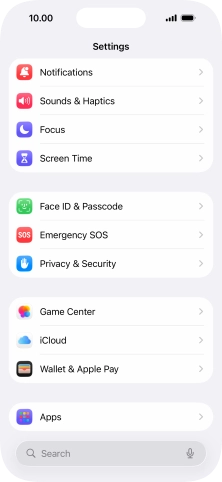
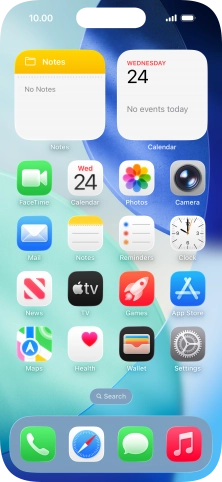
1. Find "App Store"

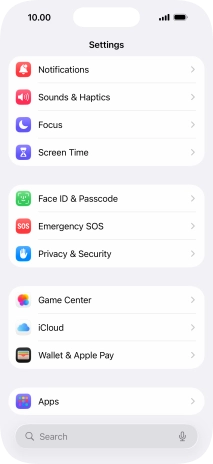
Press Settings.
Step 2 of 5

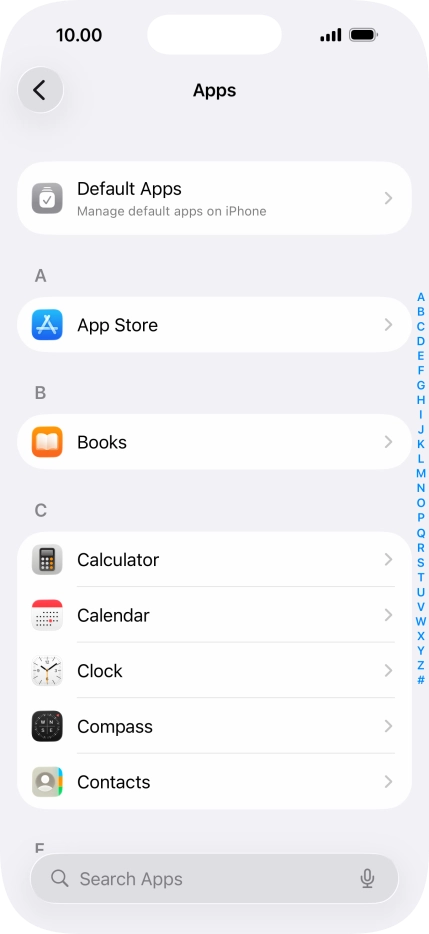
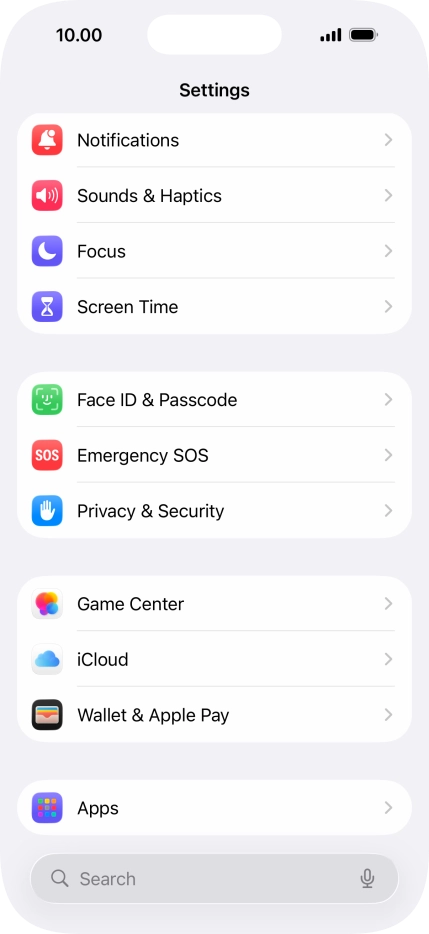
1. Find "App Store"

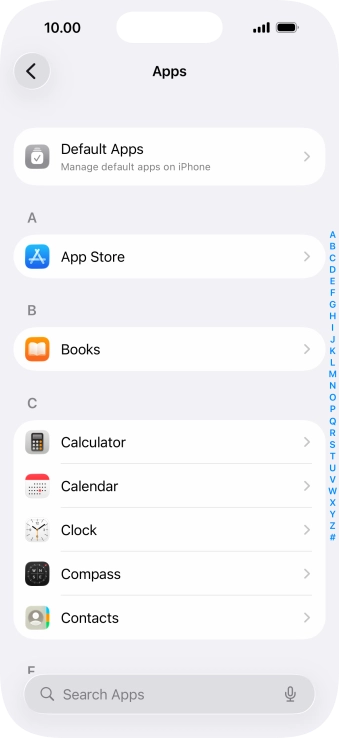
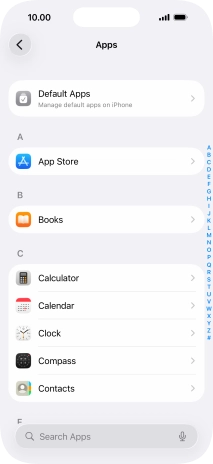
Press Apps.

Step 3 of 5

1. Find "App Store"

Press App Store.

Step 4 of 5

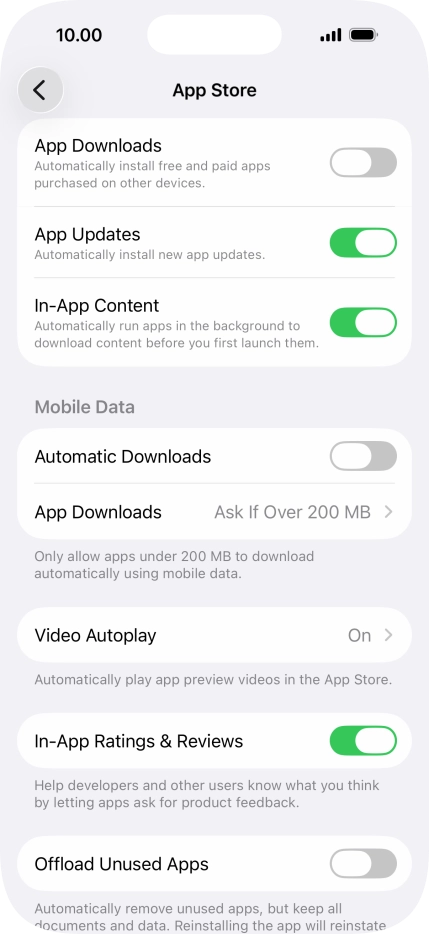
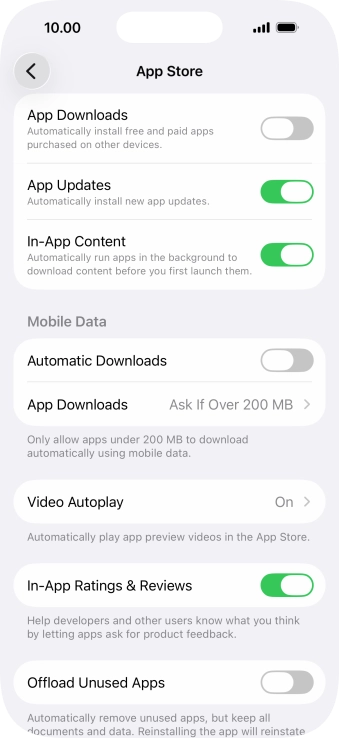
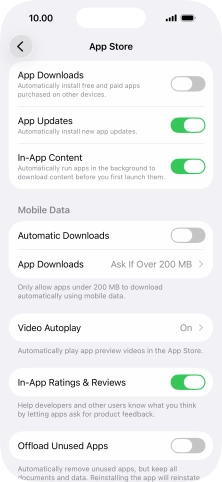
2. Turn Offload Unused Apps on or off

Press the indicator next to "Offload Unused Apps" to turn the function on or off.

Step 5 of 5

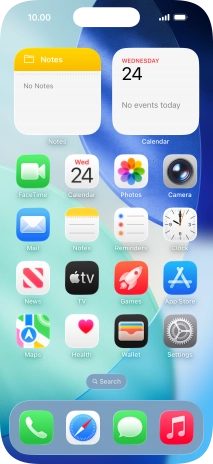
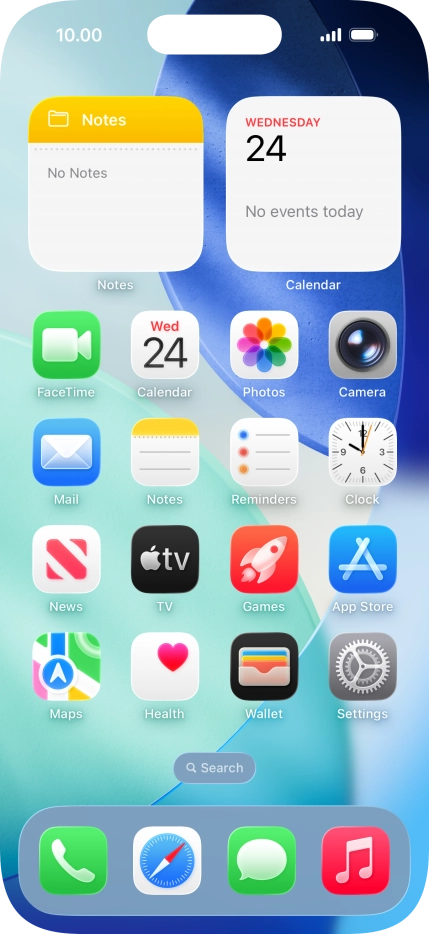
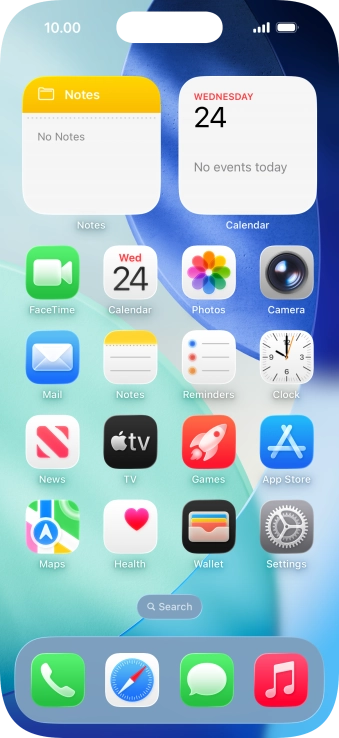
3. Return to the home screen

Slide your finger upwards starting from the bottom of the screen to return to the home screen.

1. Find "App Store"

Press Settings.
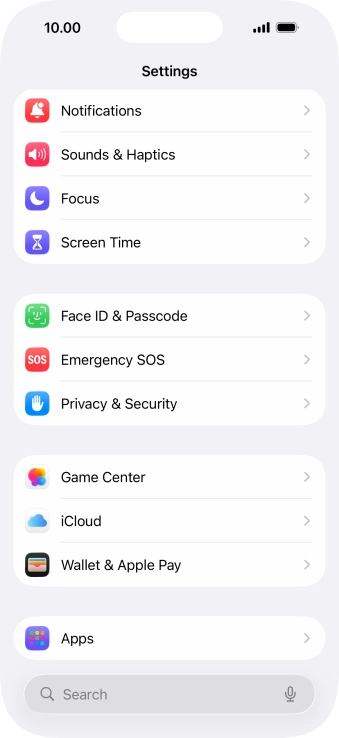
Press Apps.
Press App Store.

2. Turn Offload Unused Apps on or off
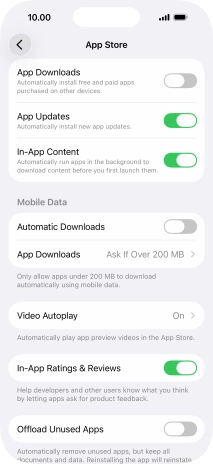
Press the indicator next to "Offload Unused Apps" to turn the function on or off.

3. Return to the home screen

Slide your finger upwards starting from the bottom of the screen to return to the home screen.

Get information on...

Or choose...