

Google Pixel 10 Pro XL
1. Find "Additional settings"
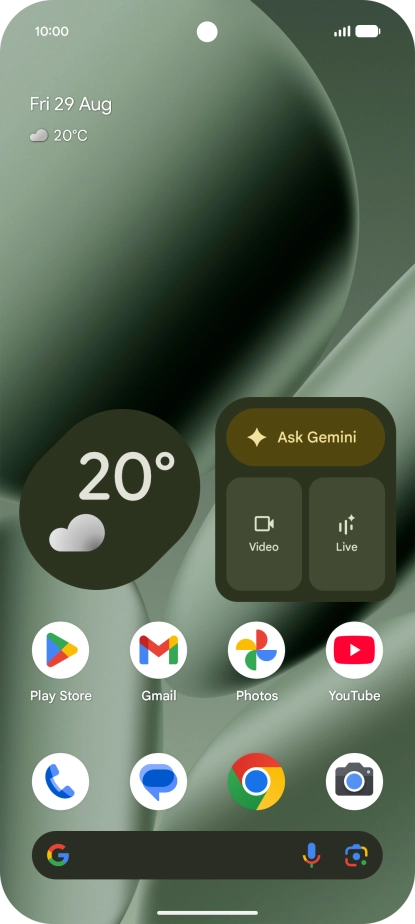
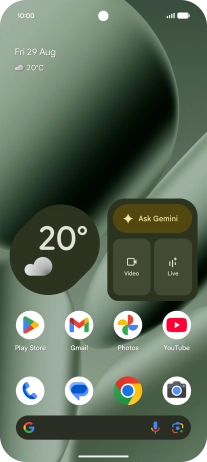
Press the call icon.
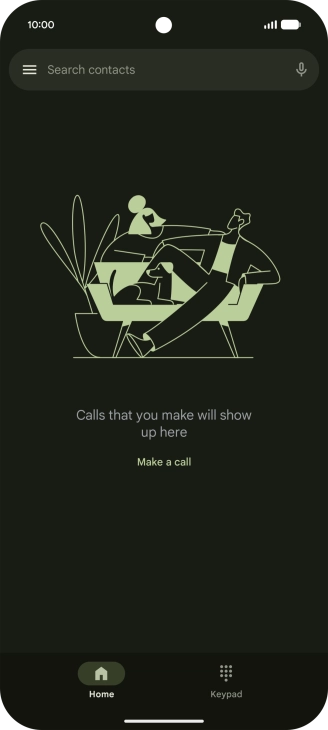
1. Find "Additional settings"
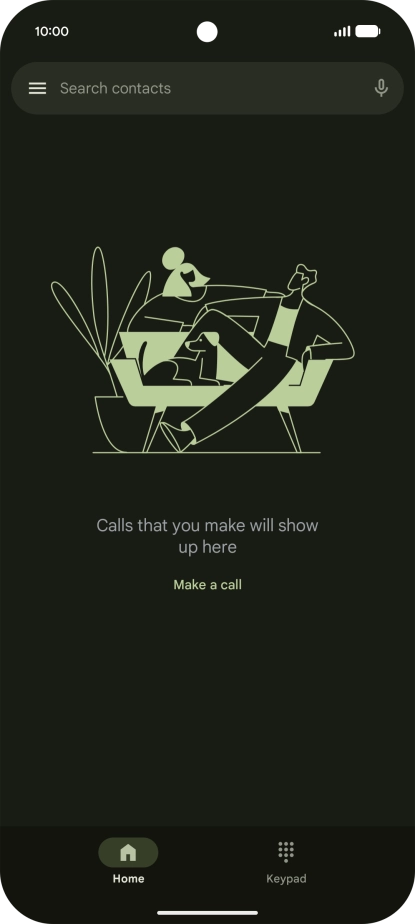
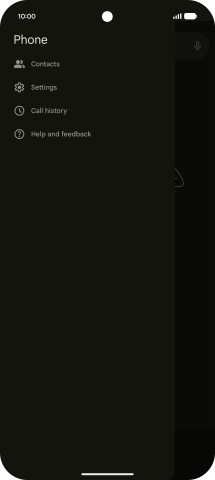
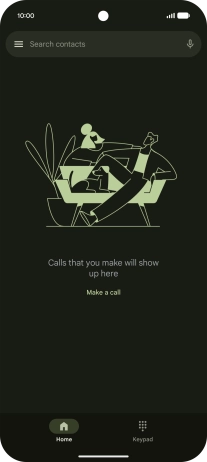
Press the menu icon.
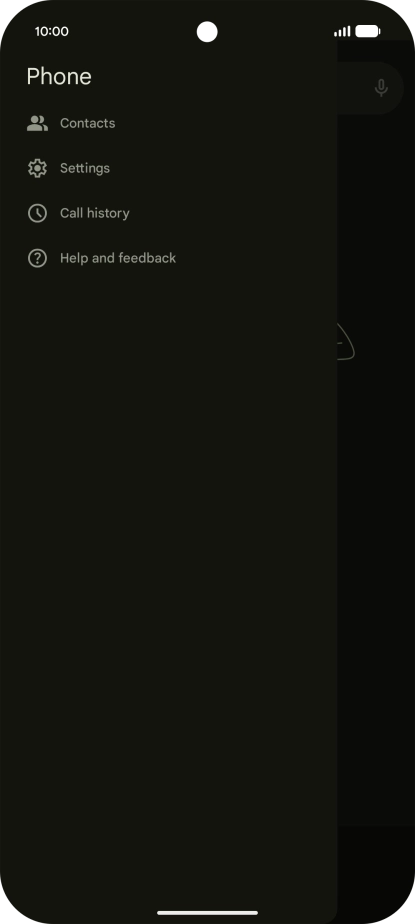
1. Find "Additional settings"
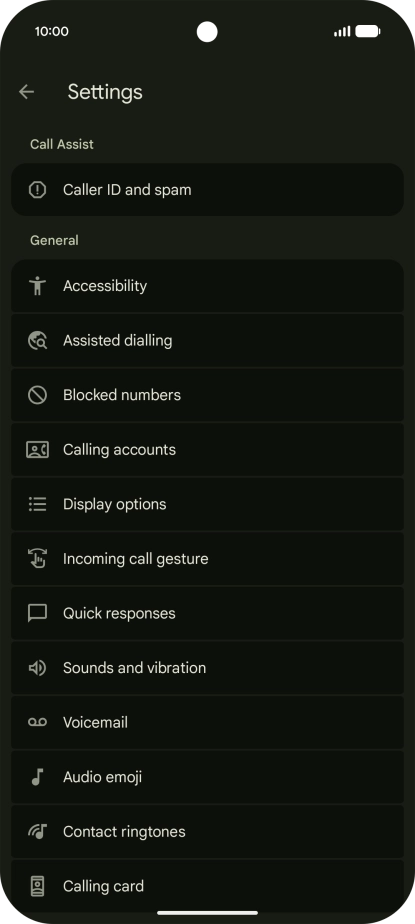
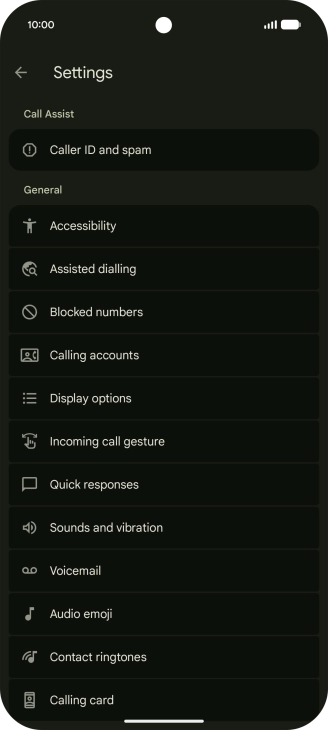
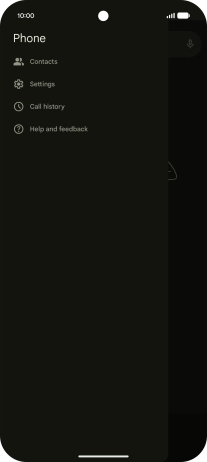
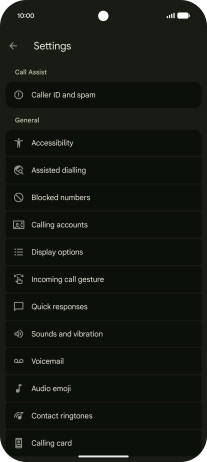
Press Settings.
1. Find "Additional settings"
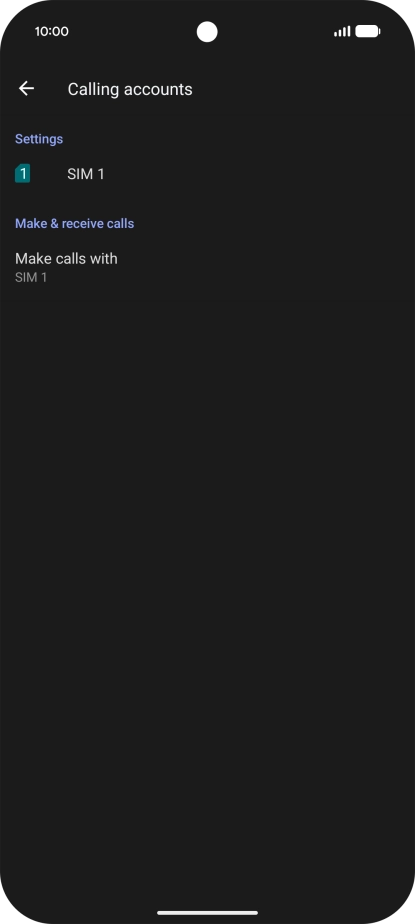
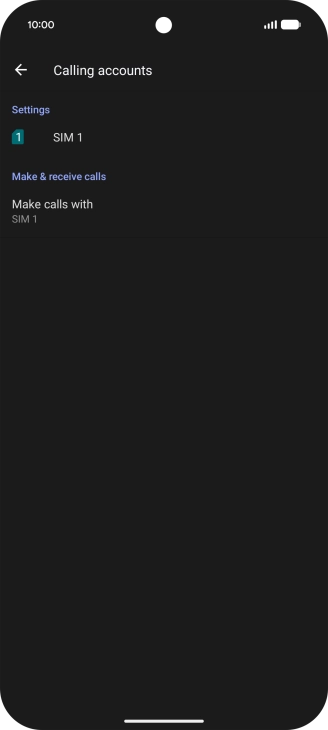
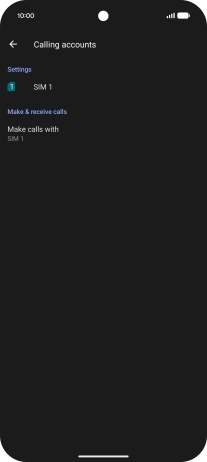
Press Calling accounts.
1. Find "Additional settings"
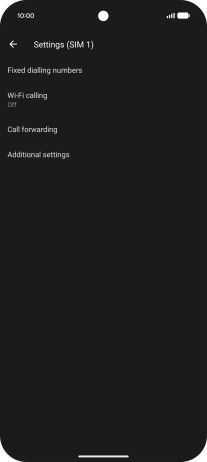
Press the name of the SIM.
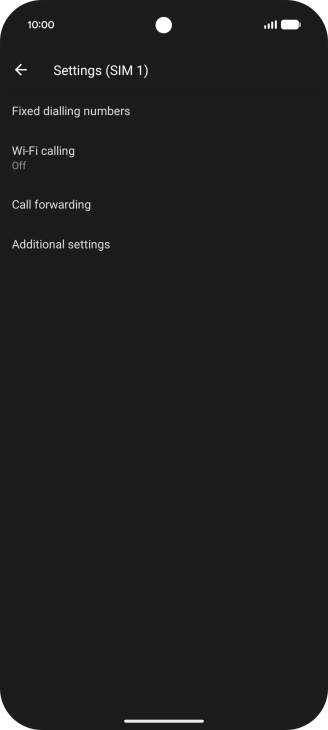
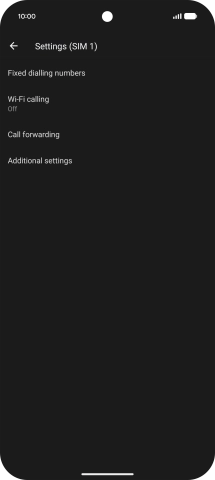
1. Find "Additional settings"
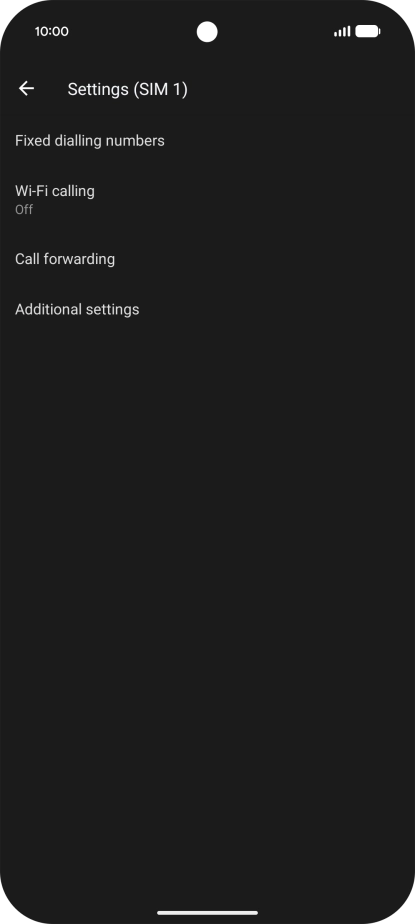
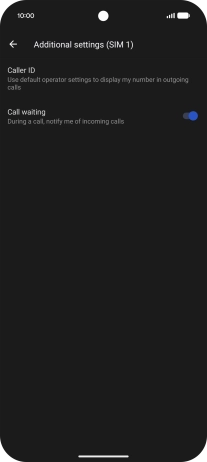
Press Additional settings.
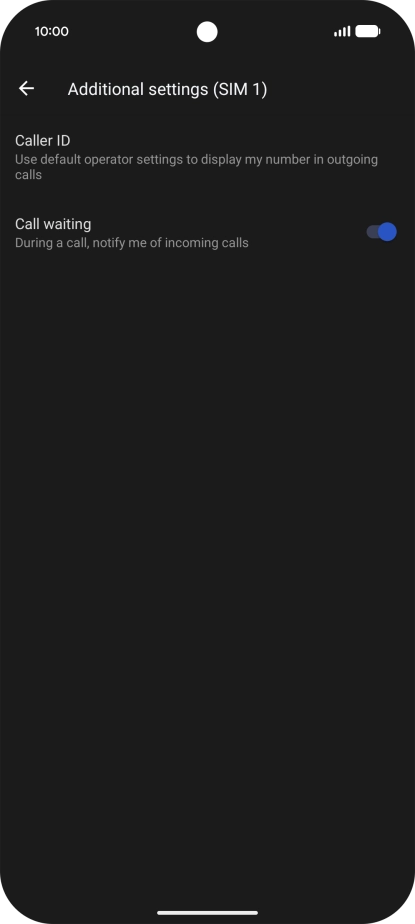
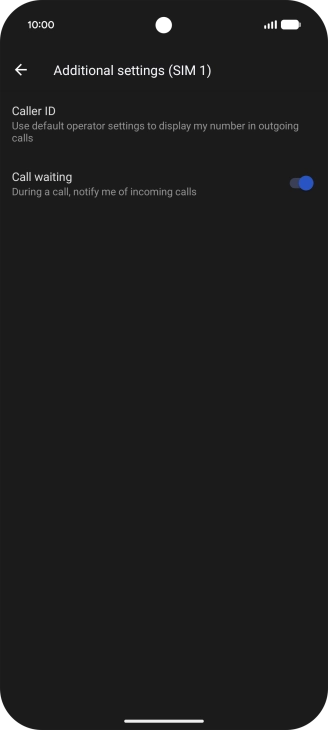
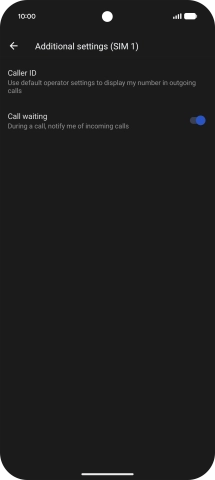
2. Turn call waiting on or off
Press the indicator next to "Call waiting" to turn the function on or off.
3. Return to the home screen
Slide your finger upwards starting from the bottom of the screen to return to the home screen.
1. Find "Additional settings"
2. Turn call waiting on or off
3. Return to the home screen


Get the App

