

Google Pixel 10 Pro XL
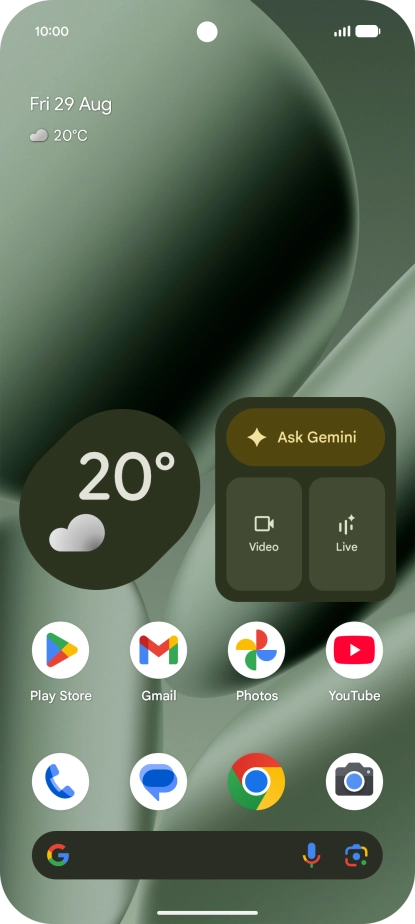
1. Find "Access point names"
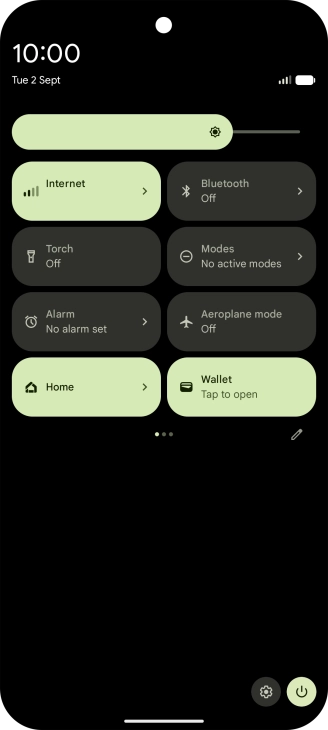
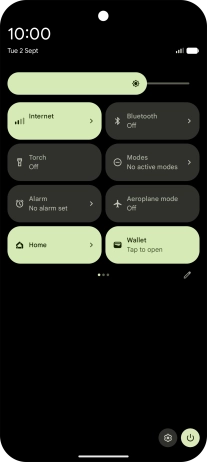
Slide two fingers downwards starting from the top of the screen.
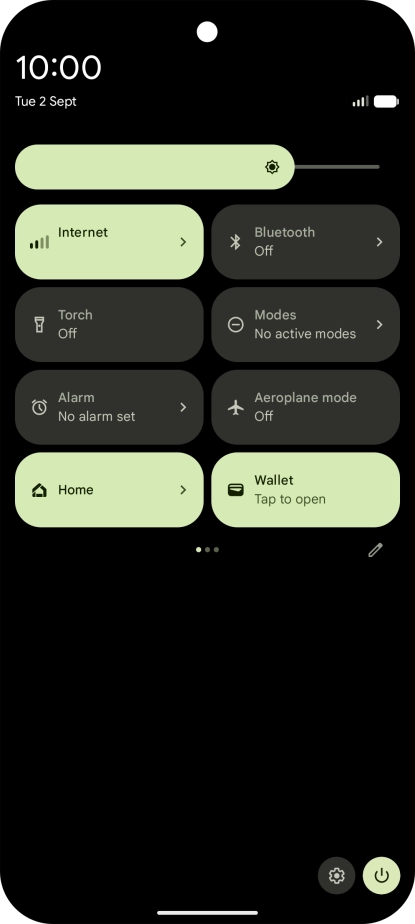
1. Find "Access point names"
Press the settings icon.
1. Find "Access point names"
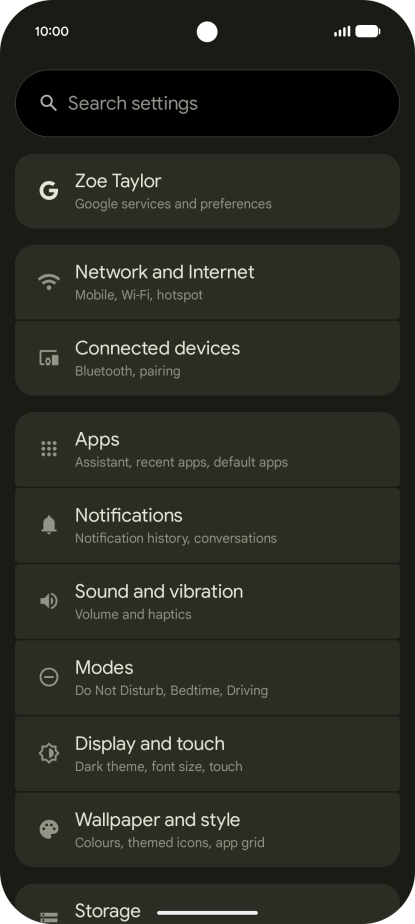
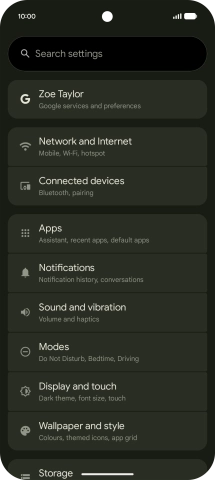
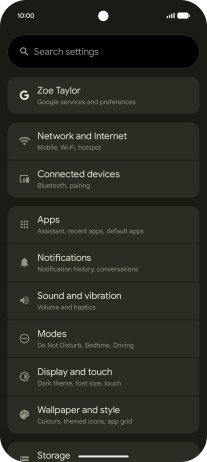
Press Network and Internet.
1. Find "Access point names"
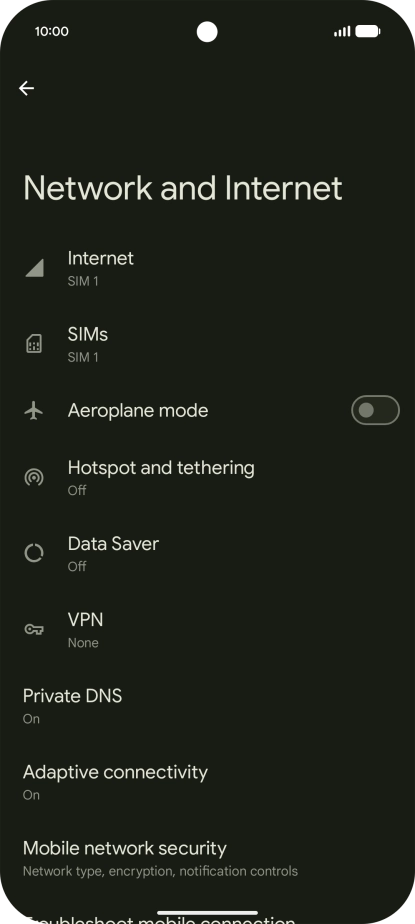
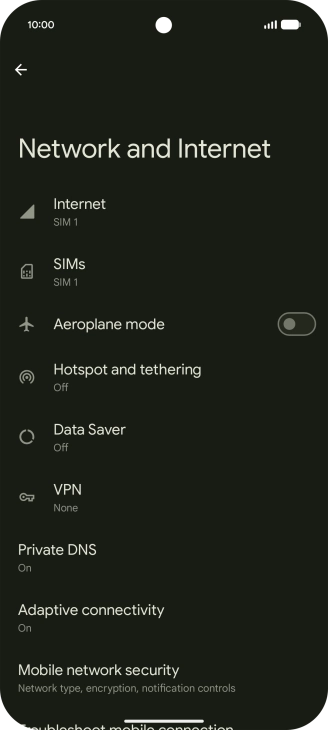
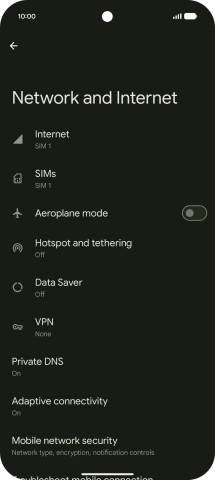
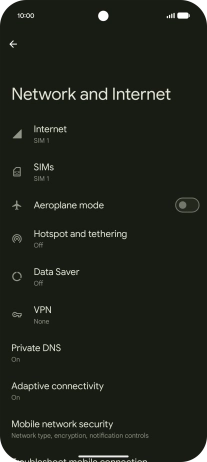
Press SIMs.
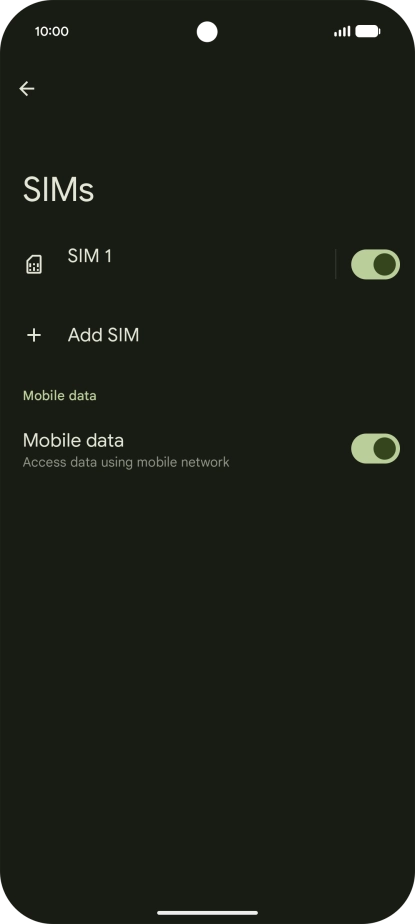
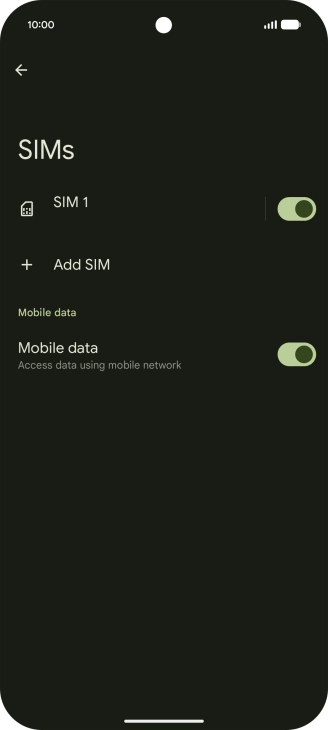
1. Find "Access point names"
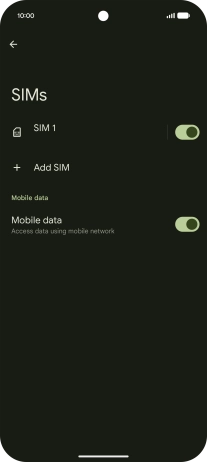
Press the name of the SIM.
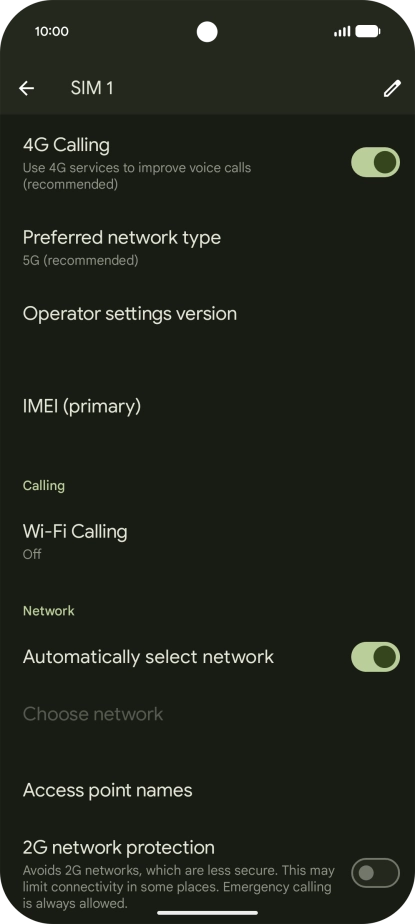
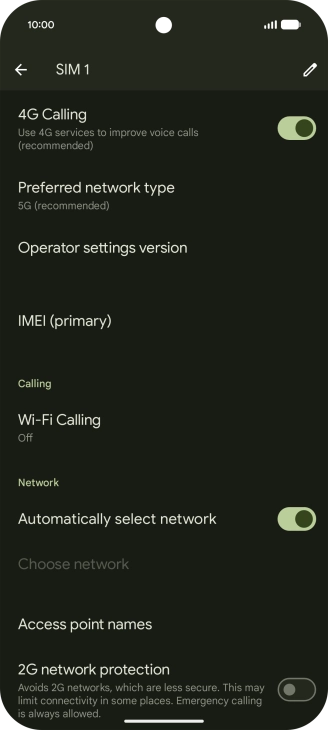
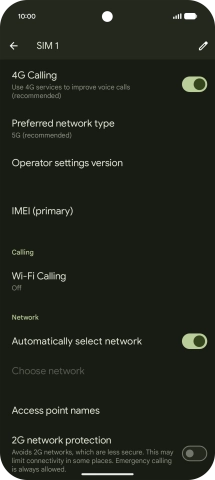
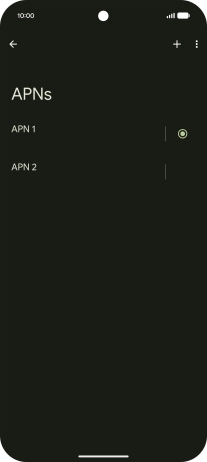
1. Find "Access point names"
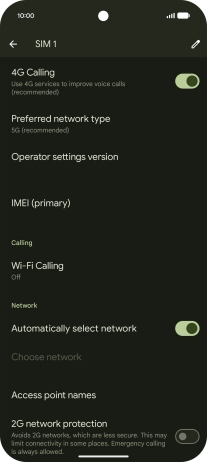
Press Access point names.
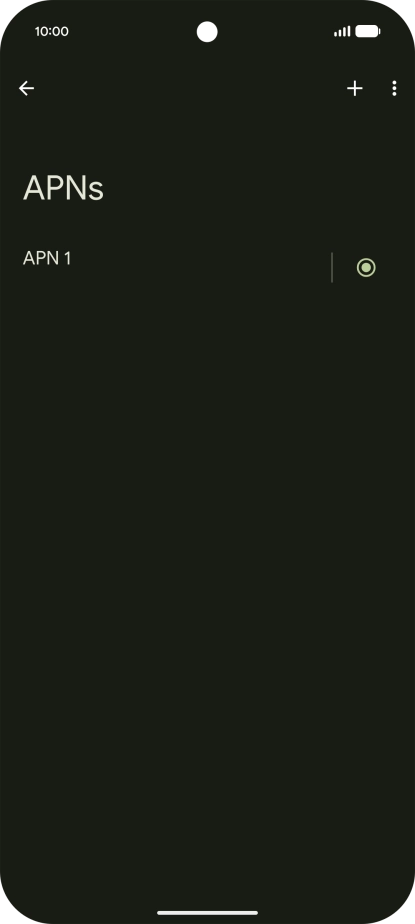
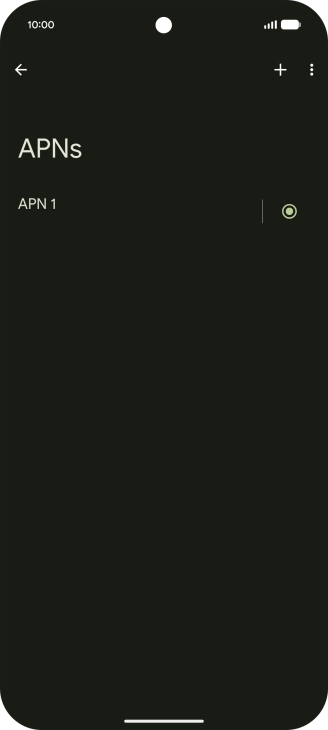
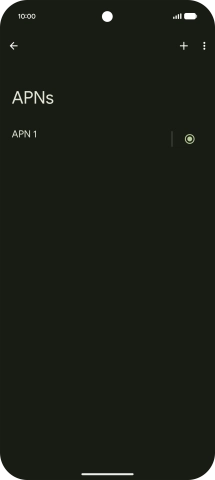
2. Create new data connection
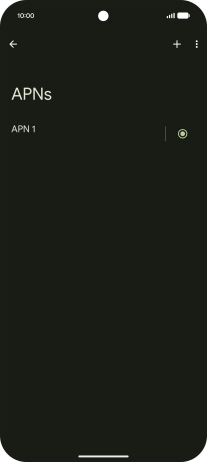
Press the add icon.
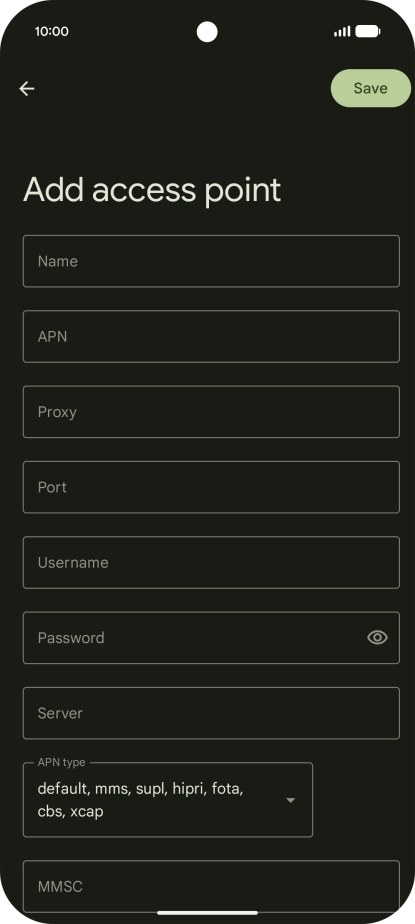
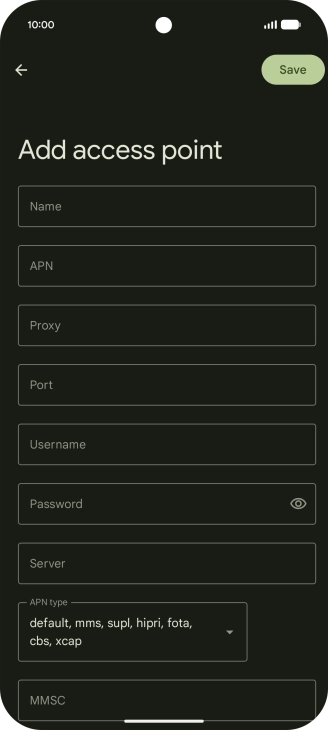
2. Create new data connection
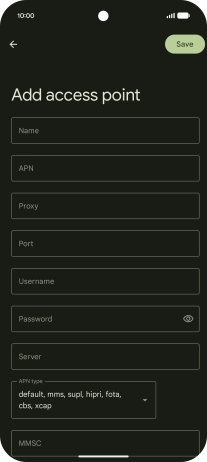
Key in Lebara MMS in the Name field.
3. Enter APN
Key in uk.lebara.mobi in the APN field.
4. Enter username
Key in wap in the Username field.
5. Enter password
Key in wap in the Password field.
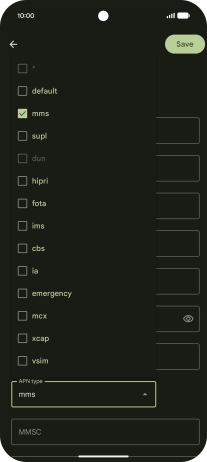
6. Select APN type
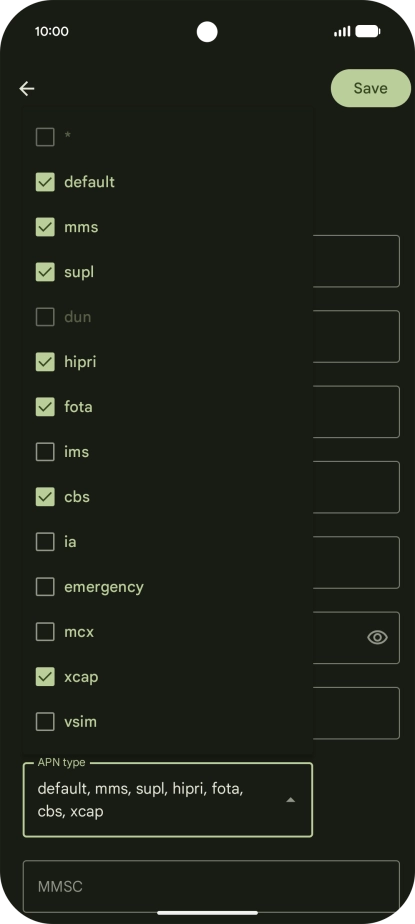
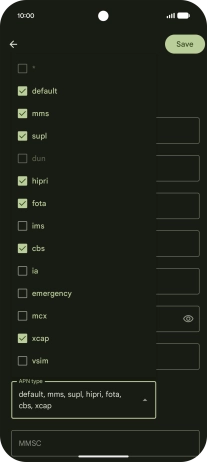
Press the drop down list next to "APN type".
6. Select APN type
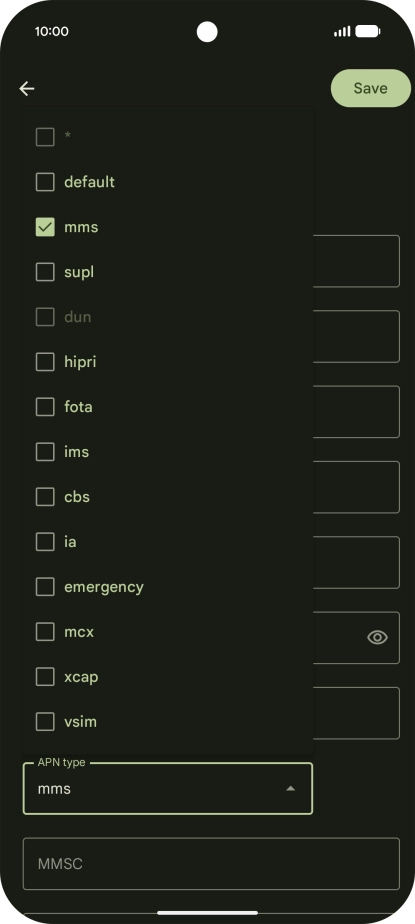
Press mms to turn on the setting.
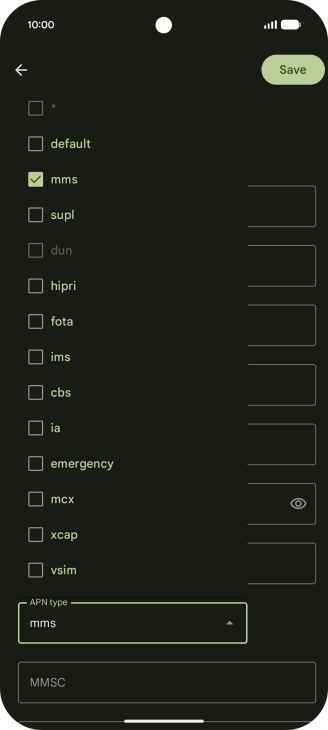
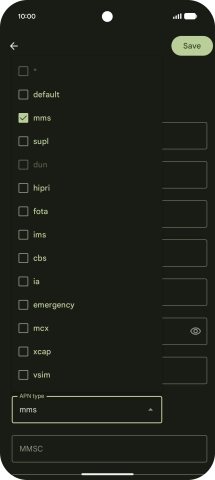
6. Select APN type
Press arrow up.
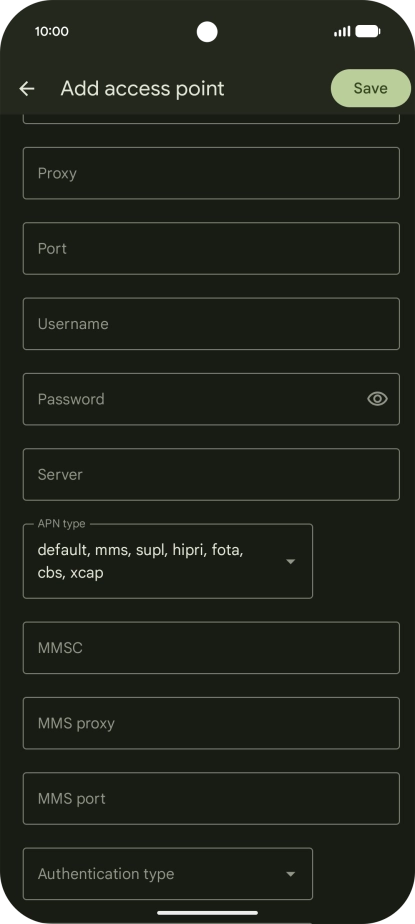
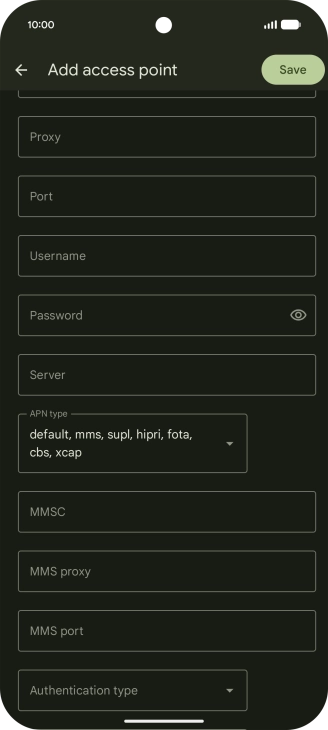
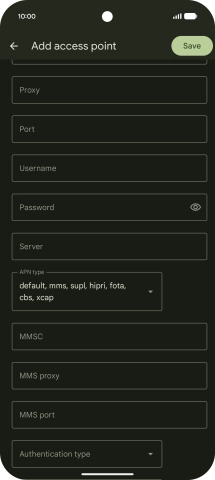
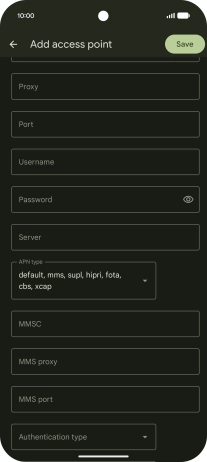
7. Enter picture messaging server
Key in http://mms.lebara.co.uk/servlets/mms in the MMSC field.
8. Enter IP address
Key in 212.183.137.012 in the MMS proxy field.
9. Enter port number
Key in 8799 in the MMS port field.
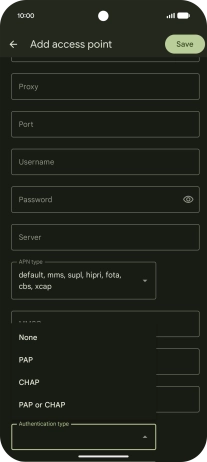
10. Select authentication type
Press the drop down list next to "Authentication type".
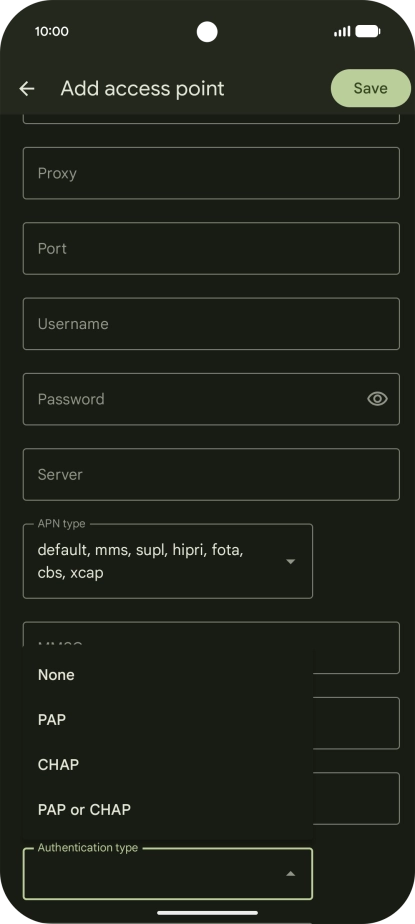
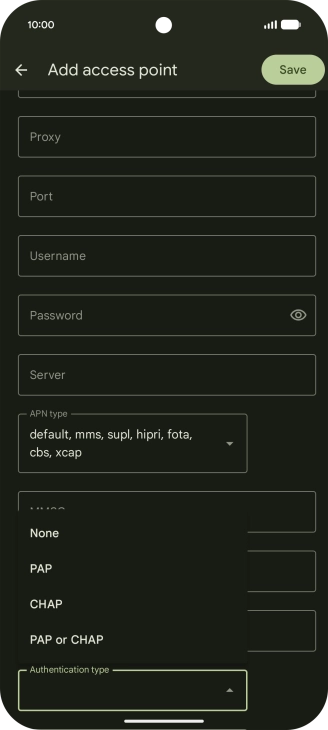
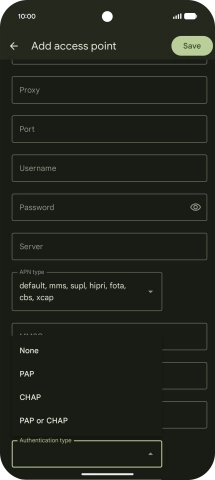
10. Select authentication type
Press None.
11. Save data connection
Press Save.
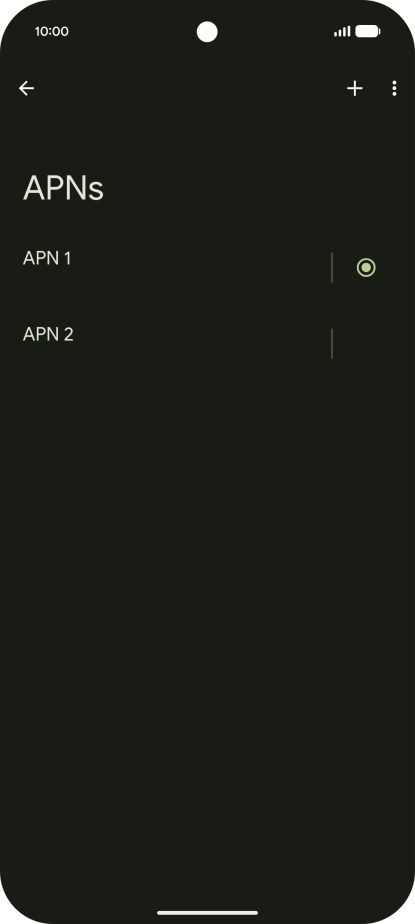
12. Return to the home screen
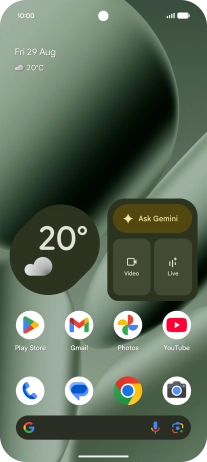
Slide your finger upwards starting from the bottom of the screen to return to the home screen.
1. Find "Access point names"
2. Create new data connection
3. Enter APN
4. Enter username
5. Enter password
6. Select APN type
7. Enter picture messaging server
8. Enter IP address
9. Enter port number
10. Select authentication type
11. Save data connection
12. Return to the home screen


Get the App

