Google Pixel 10 Pro XL

Google Pixel 10 Pro XL
Android 16

I can't use the internet connection on my Google Pixel 10 Pro XL Android 16
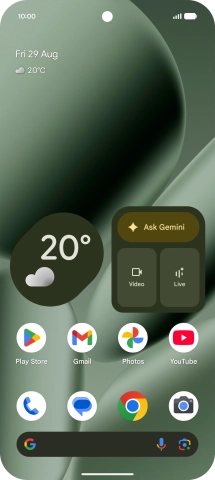
Cause 1 of 4: Your phone hasn't been correctly set up for internet

Several functions on the phone require an internet connection, e.g. when you use the internet browser, send email and install apps.

Solution: Set up your phone for internet.

Step 1 of 19

Find "Access point names"

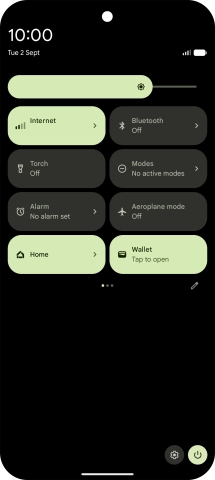
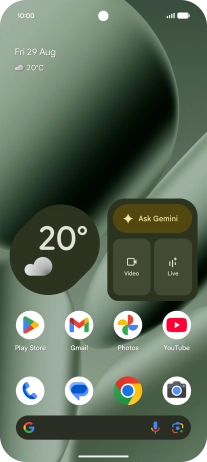
Slide two fingers downwards starting from the top of the screen.
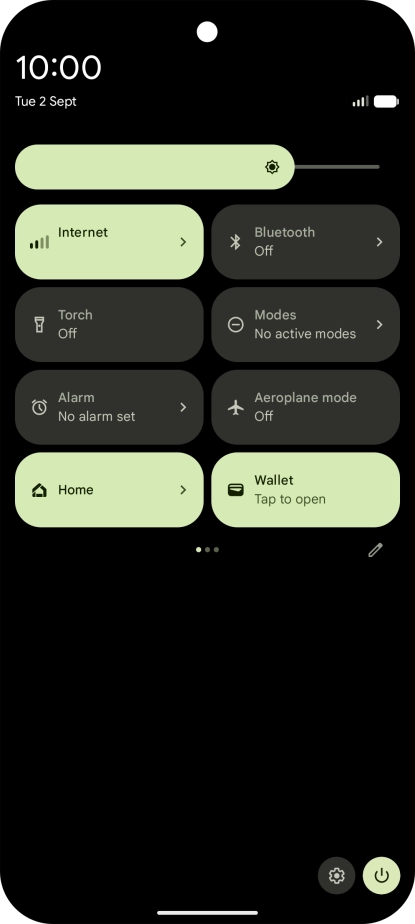
Step 2 of 19

Find "Access point names"

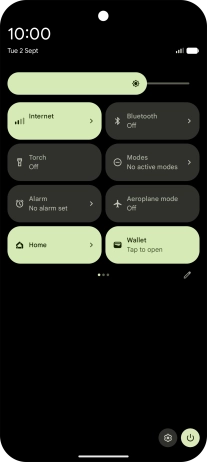
Press the settings icon.

Step 3 of 19

Find "Access point names"

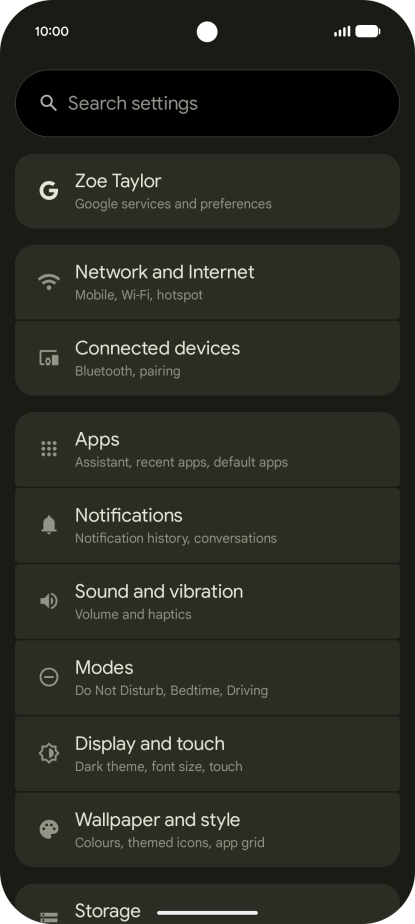
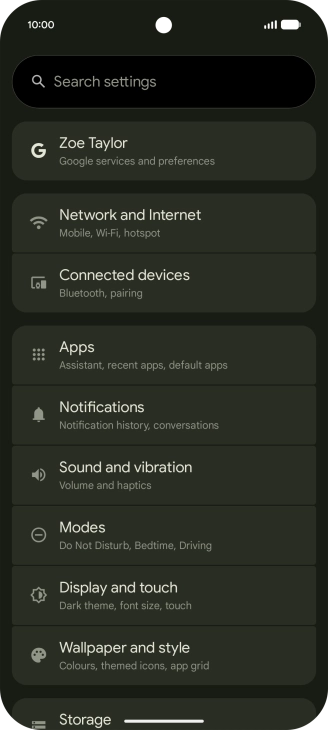
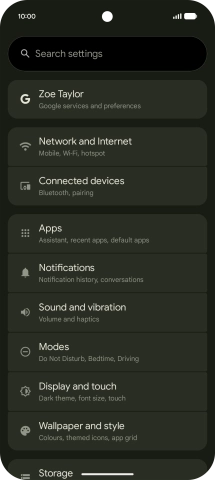
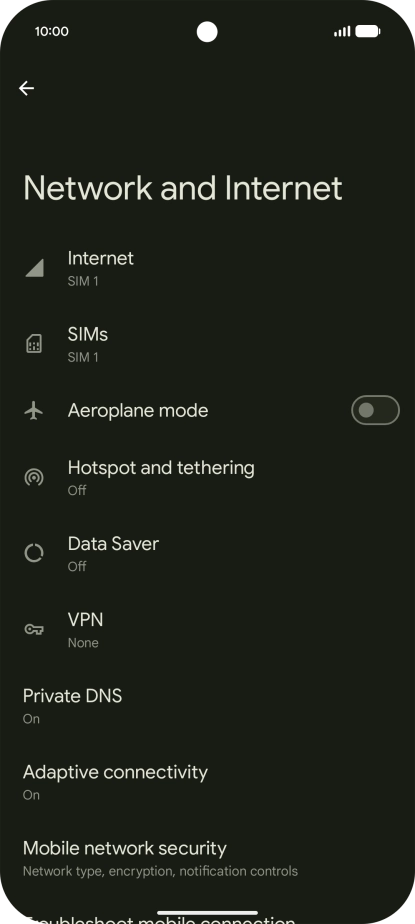
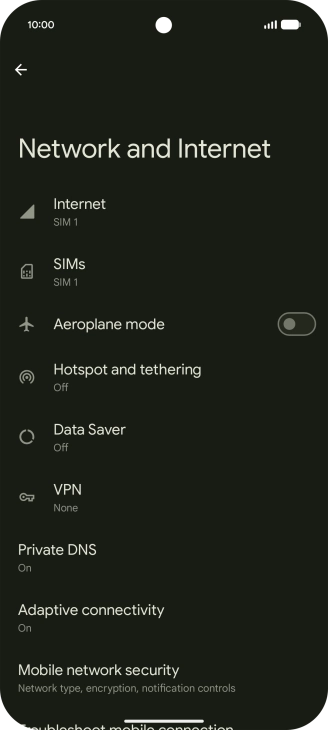
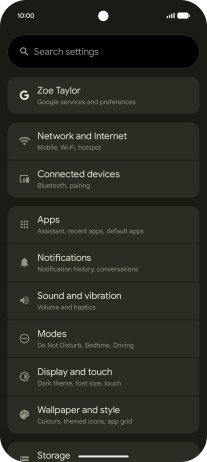
Press Network and Internet.

Step 4 of 19

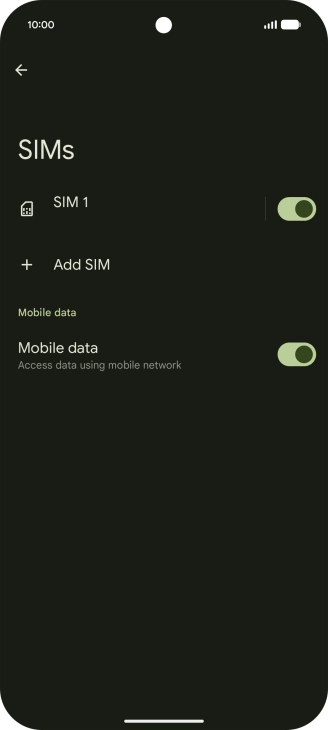
Find "Access point names"

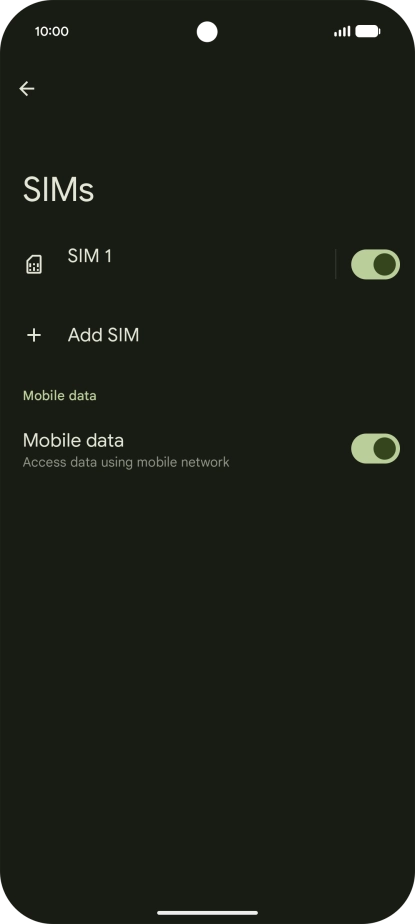
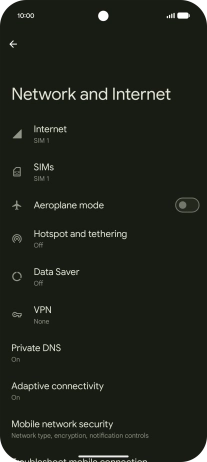
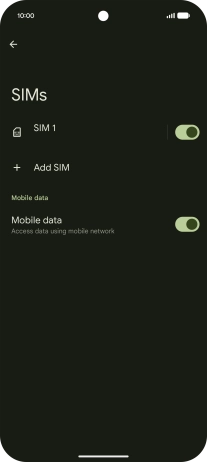
Press SIMs.

Step 5 of 19

Find "Access point names"

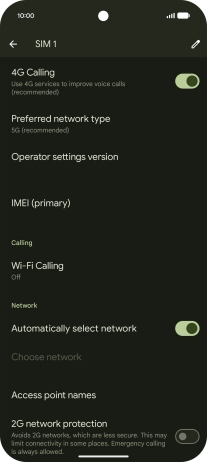
Press the name of the SIM.

Step 6 of 19

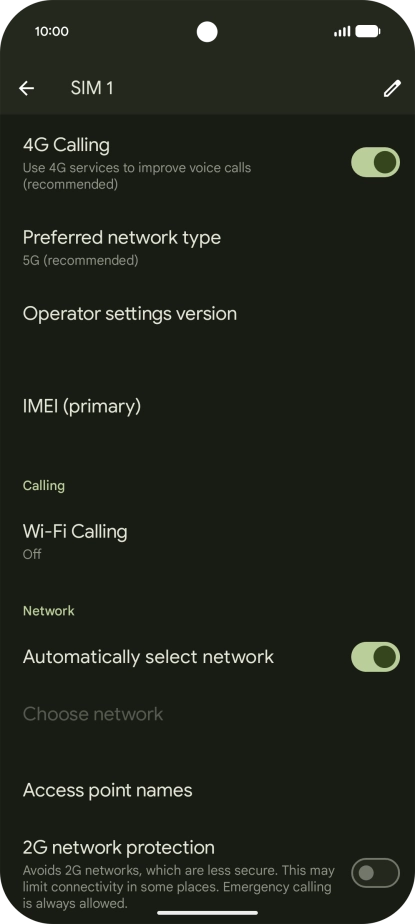
Find "Access point names"

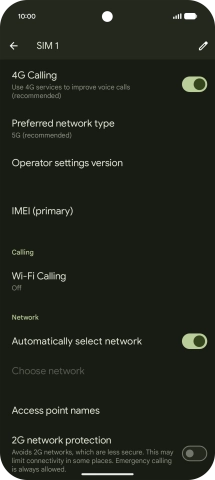
Press Access point names.

Step 7 of 19

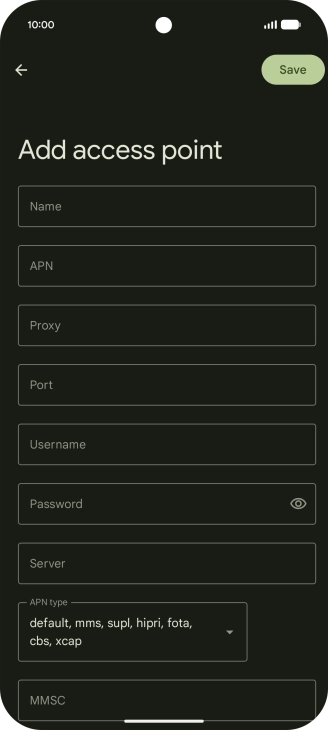
Create new data connection

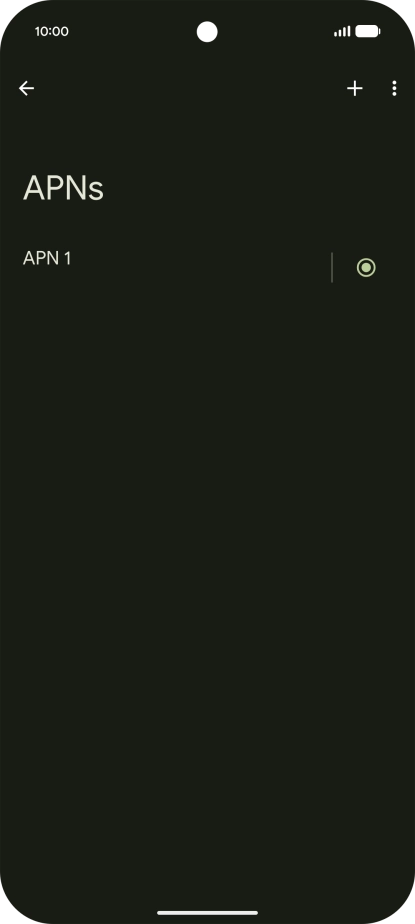
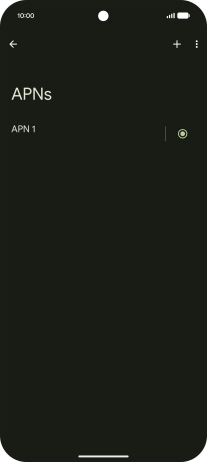
Press the add icon.

Lebara Internet
Step 8 of 19

Create new data connection

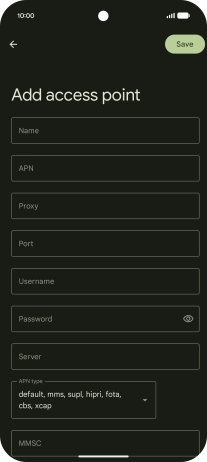
Key in Lebara Internet in the Name field.

uk.lebara.mobi
Step 9 of 19

Enter APN

Key in uk.lebara.mobi in the APN field.

wap
Step 10 of 19

Enter username

Key in wap in the Username field.

wap
Step 11 of 19

Enter password

Key in wap in the Password field.

Step 12 of 19

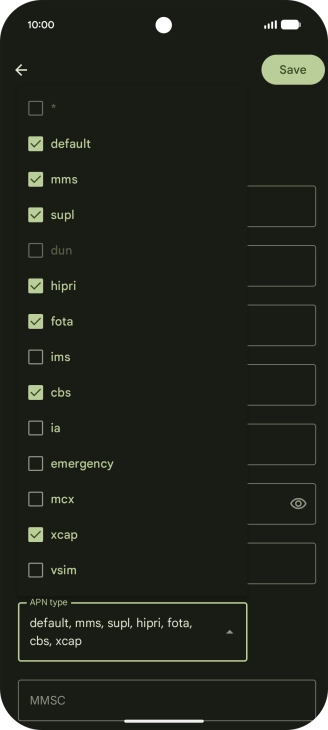
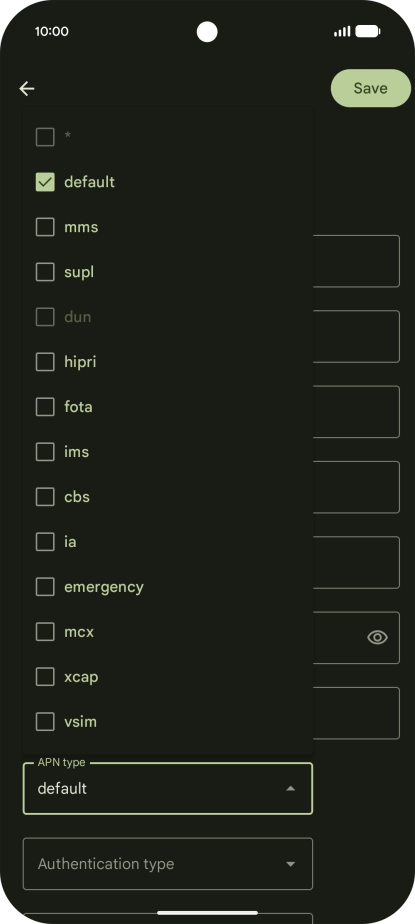
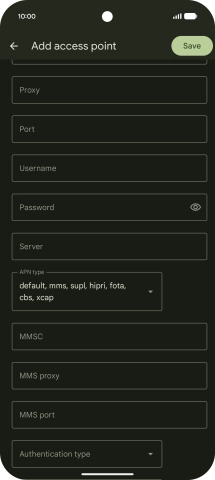
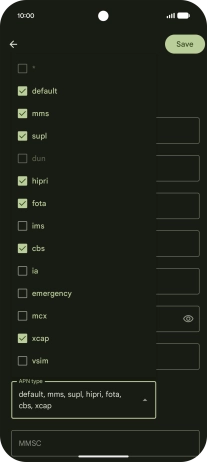
Select APN type

Press the drop down list next to "APN type".

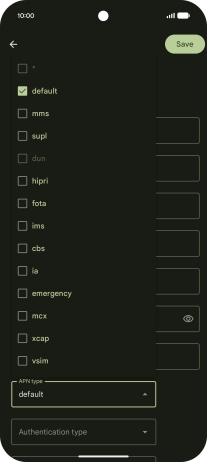
Step 13 of 19

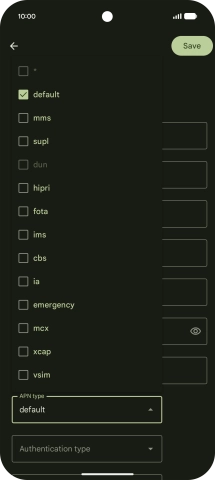
Select APN type

Press default to turn on the setting.

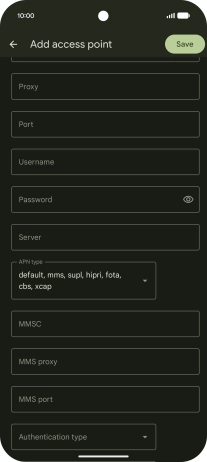
Step 14 of 19

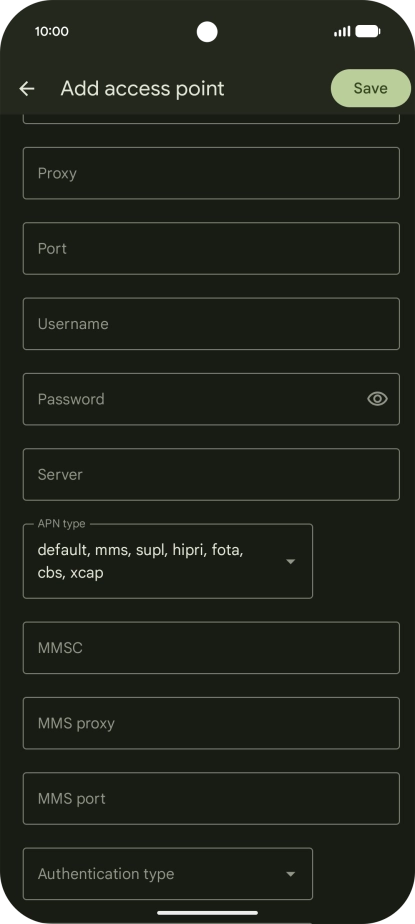
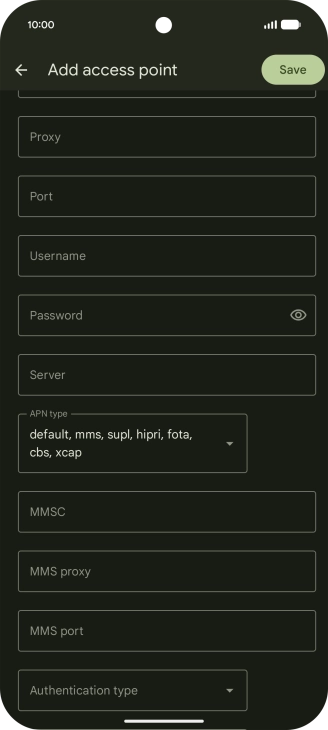
Select APN type

Press arrow up.

Step 15 of 19

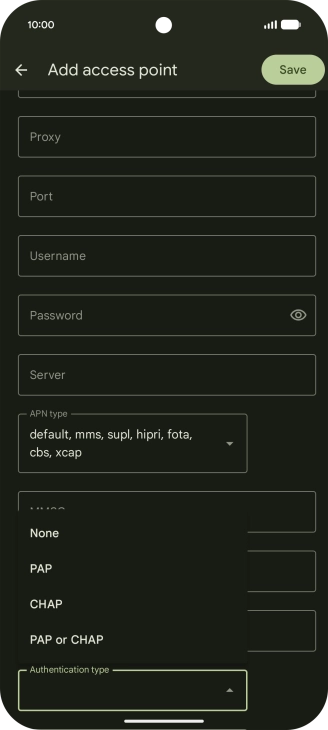
Select authentication type

Press the drop down list next to "Authentication type".

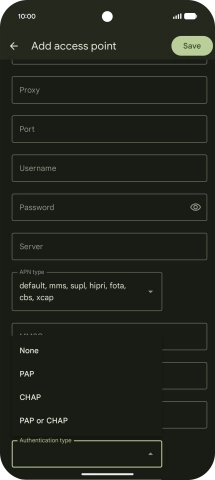
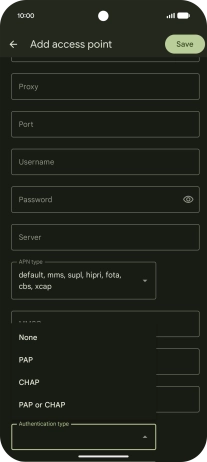
Step 16 of 19

Select authentication type

Press None.

Step 17 of 19

Save data connection

Press Save.

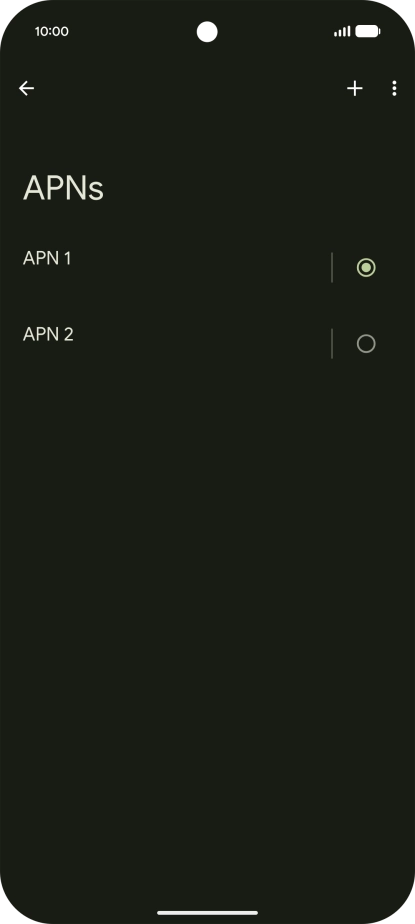
Step 18 of 19

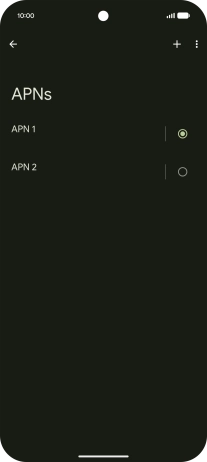
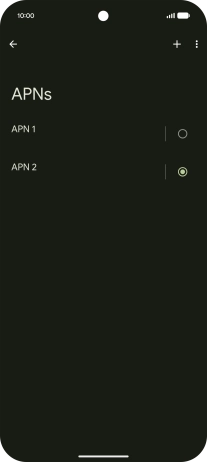
Save data connection

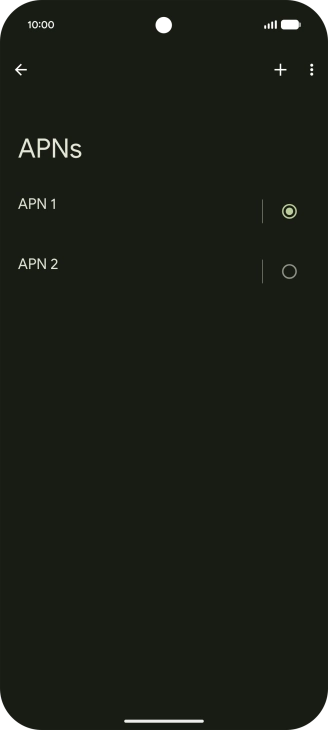
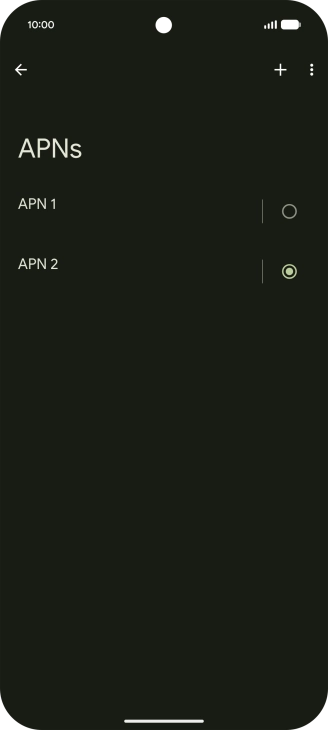
Press the field next to the data connection to activate it.

Step 19 of 19

Return to the home screen

Slide your finger upwards starting from the bottom of the screen to return to the home screen.

1 Find "Access point names"

Slide two fingers downwards starting from the top of the screen.
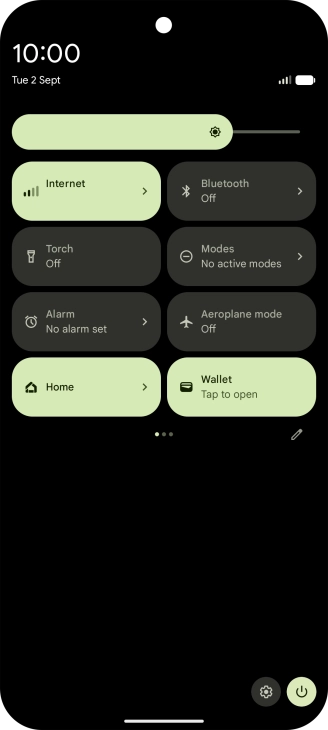
Press the settings icon.
Press Network and Internet.
Press SIMs.
Press the name of the SIM.
Press Access point names.

2 Create new data connection

Press the add icon.
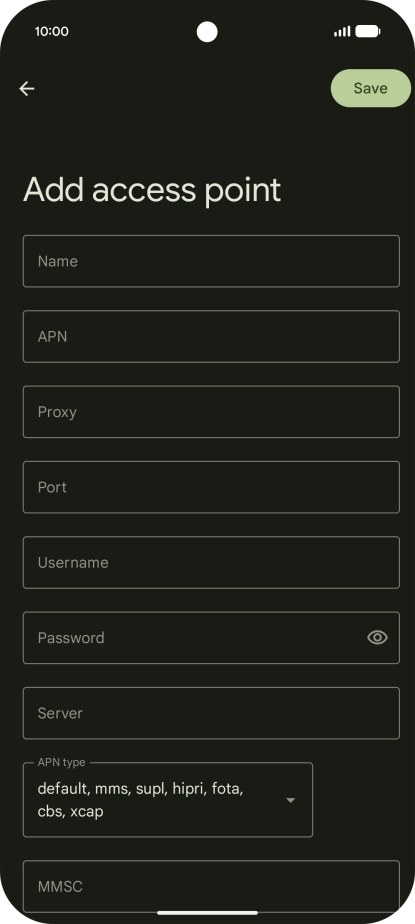
Key in Lebara Internet in the Name field.
Lebara Internet

3 Enter APN

Key in uk.lebara.mobi in the APN field.
uk.lebara.mobi

4 Enter username

Key in wap in the Username field.
wap

5 Enter password

Key in wap in the Password field.
wap

6 Select APN type

Press the drop down list next to "APN type".
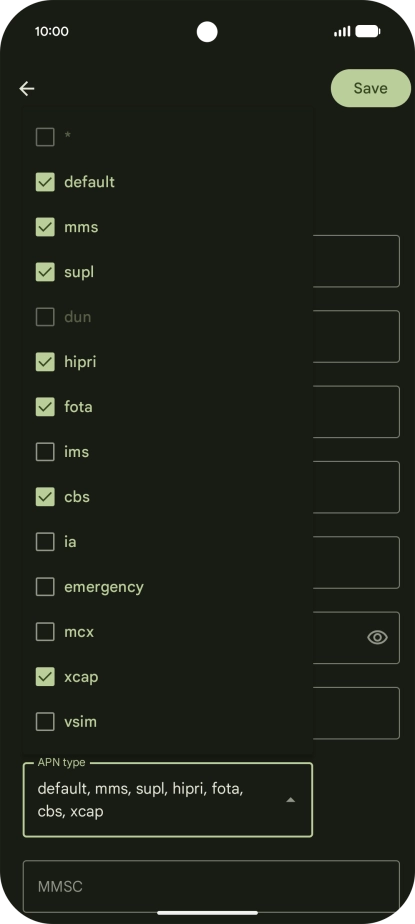
Press default to turn on the setting.
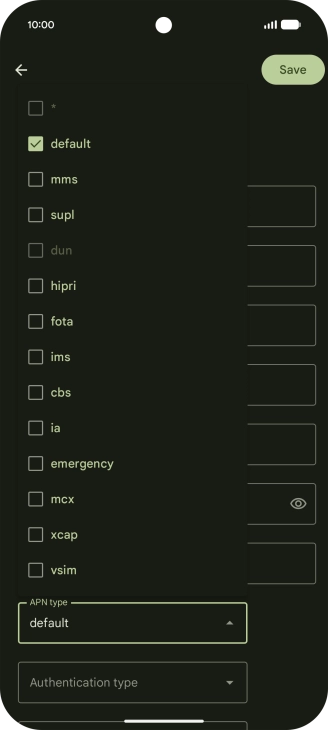
Press arrow up.

7 Select authentication type

Press the drop down list next to "Authentication type".
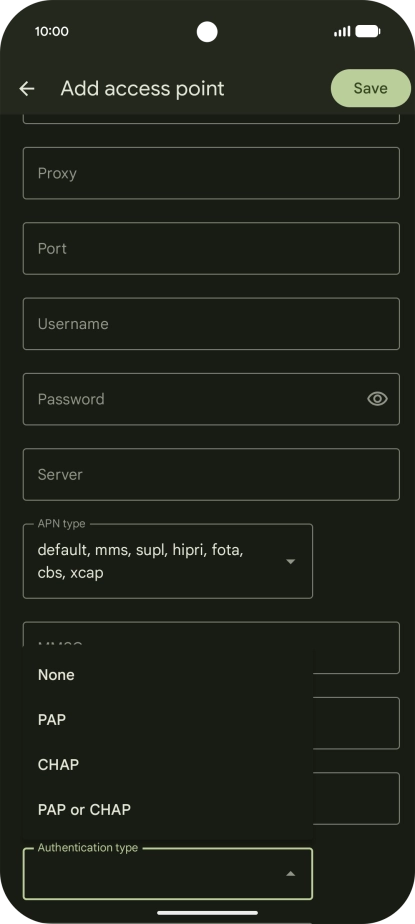
Press None.

8 Save data connection

Press Save.
Press the field next to the data connection to activate it.
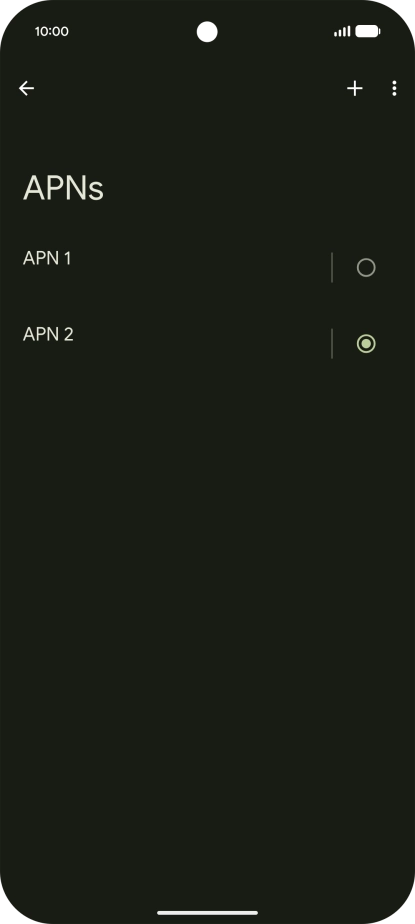
9 Return to the home screen

Slide your finger upwards starting from the bottom of the screen to return to the home screen.

Did this solve the problem?

Yes - All solved No - Go to next cause

Get information on...

Or choose...