Motorola Moto G8 Power Lite

Motorola Moto G8 Power Lite
Android 9.0

Short battery life on my Motorola Moto G8 Power Lite Android 9.0
Cause 12 of 14: Notifications are turned on

If notifications are turned on, the power consumption may increase.

Solution: Turn off notifications.

Step 1 of 8

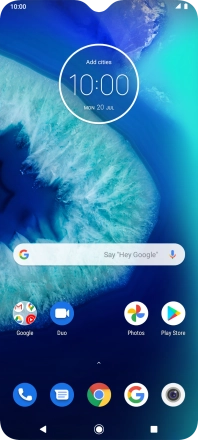
Find "Notifications"

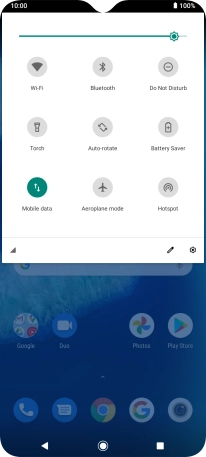
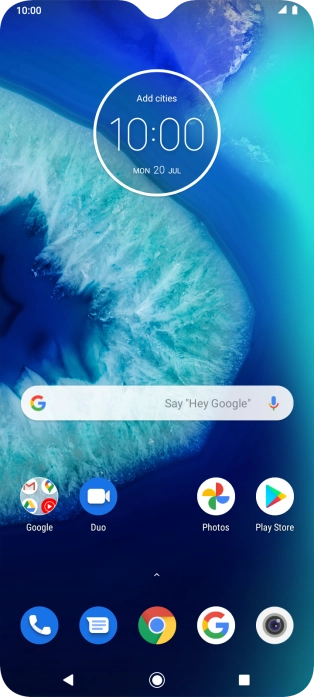
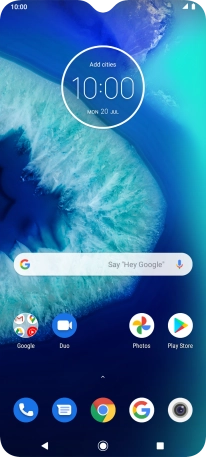
Slide two fingers downwards starting from the top of the screen.
Step 2 of 8

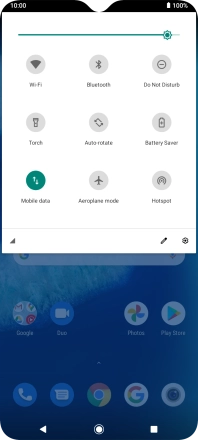
Find "Notifications"

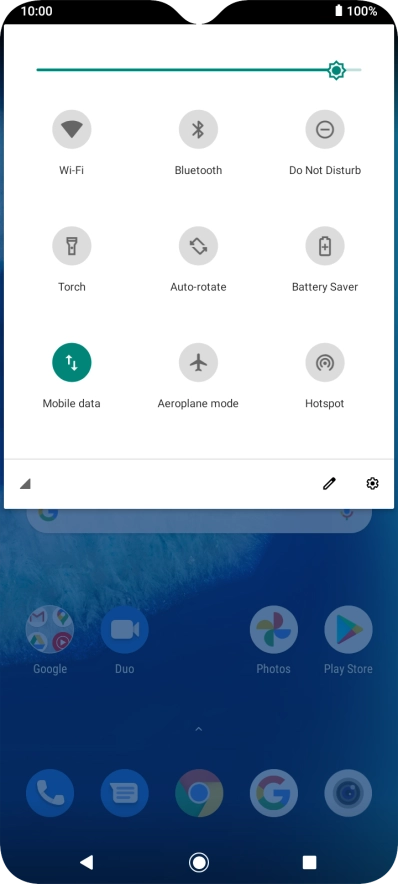
Press the settings icon.

Step 3 of 8

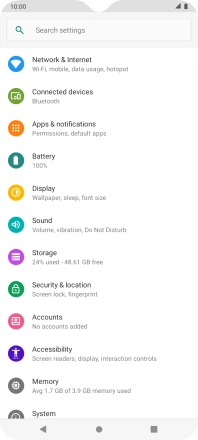
Find "Notifications"

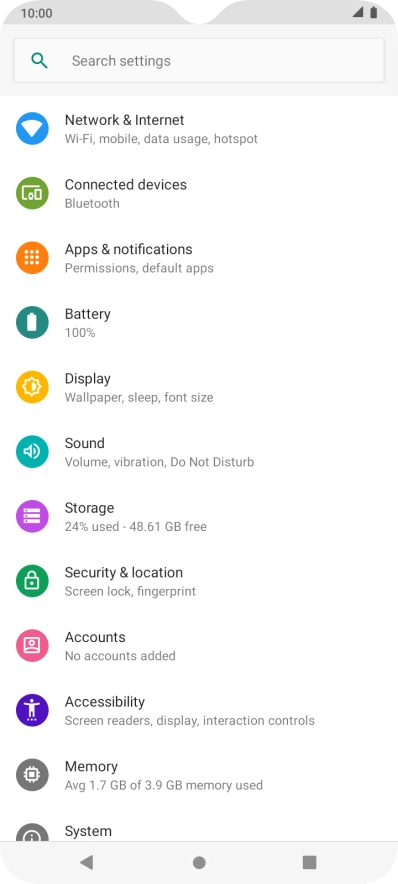
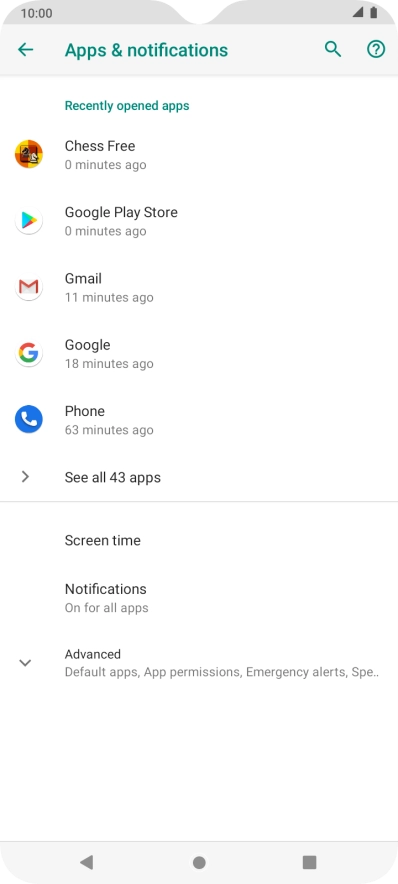
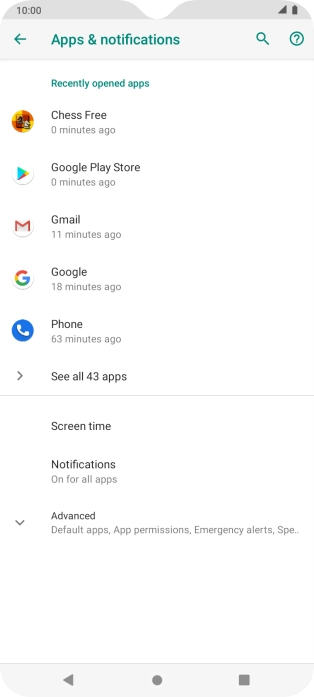
Press Apps & notifications.

Step 4 of 8

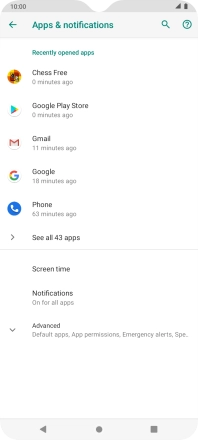
Find "Notifications"

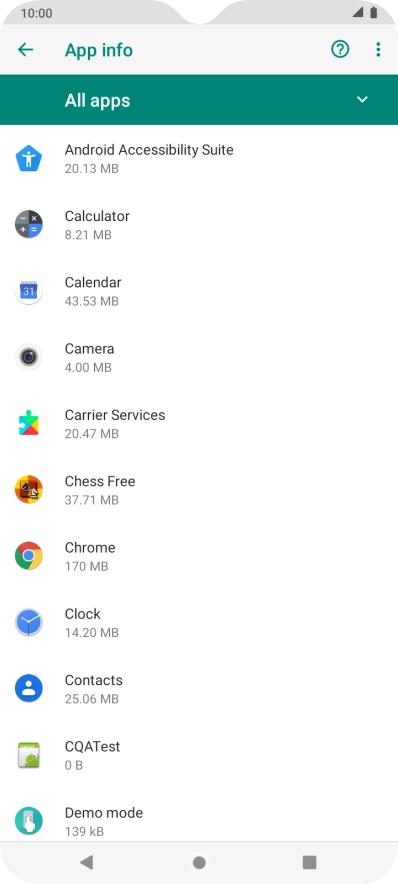
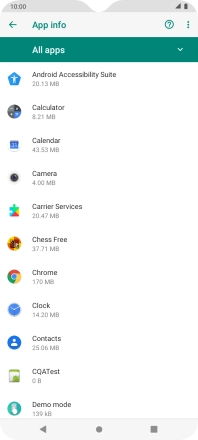
Press See all apps.

Step 5 of 8

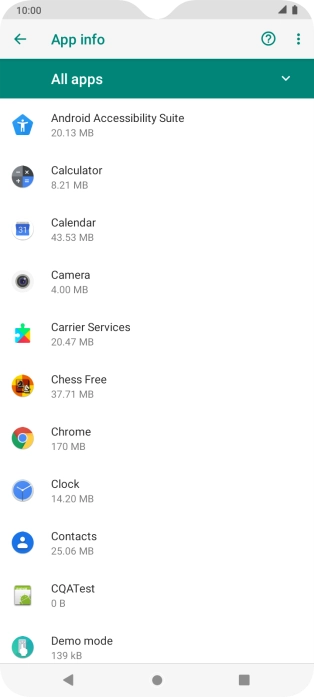
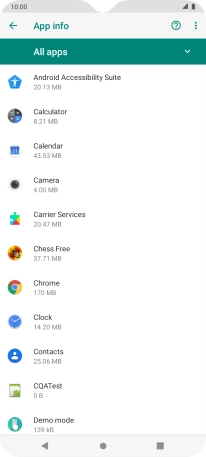
Find "Notifications"

Press the required app.

Step 6 of 8

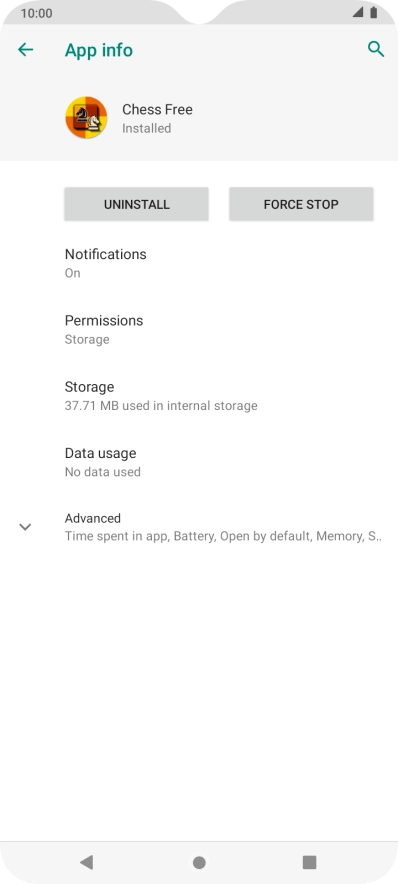
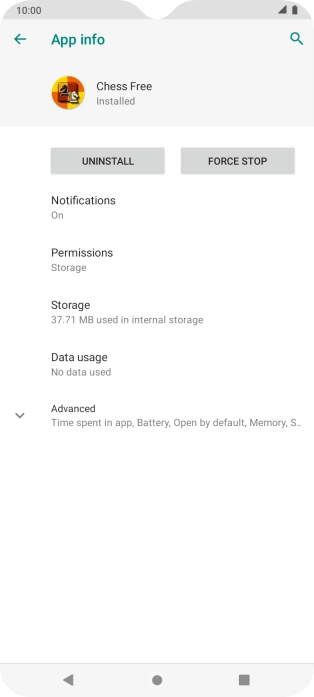
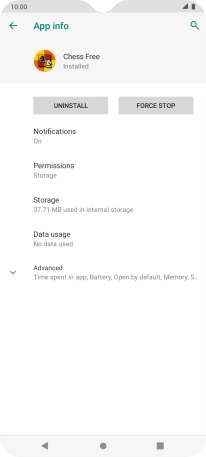
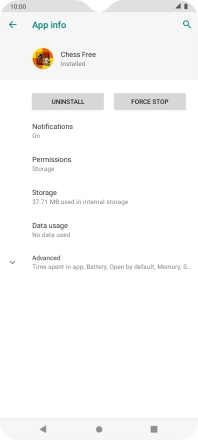
Find "Notifications"

Press Notifications.

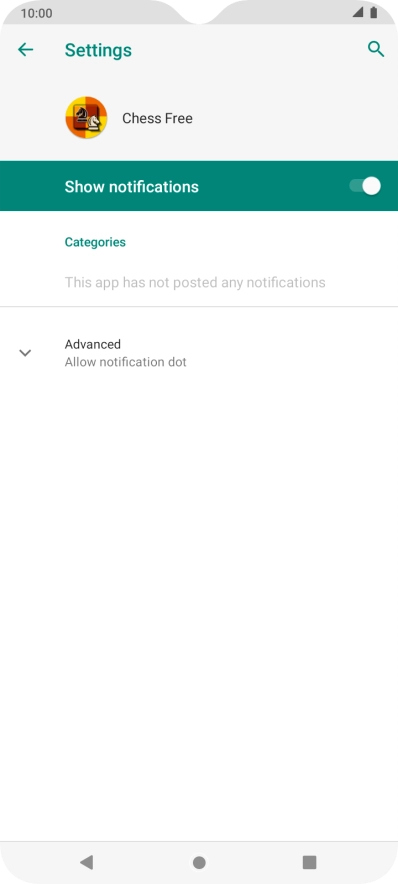
Step 7 of 8

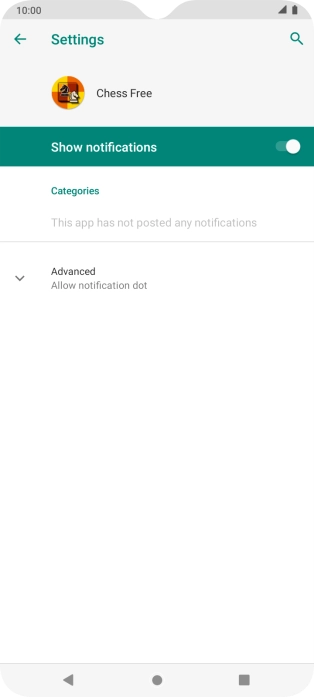
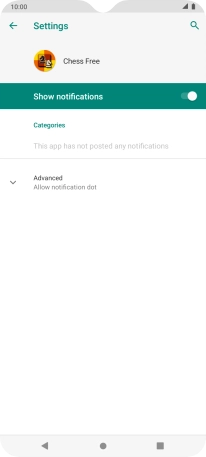
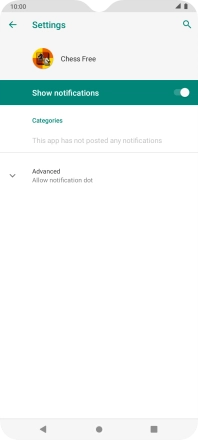
Turn notifications on or off

Press the indicator next to "Show notifications" to turn the function on or off.

Step 8 of 8

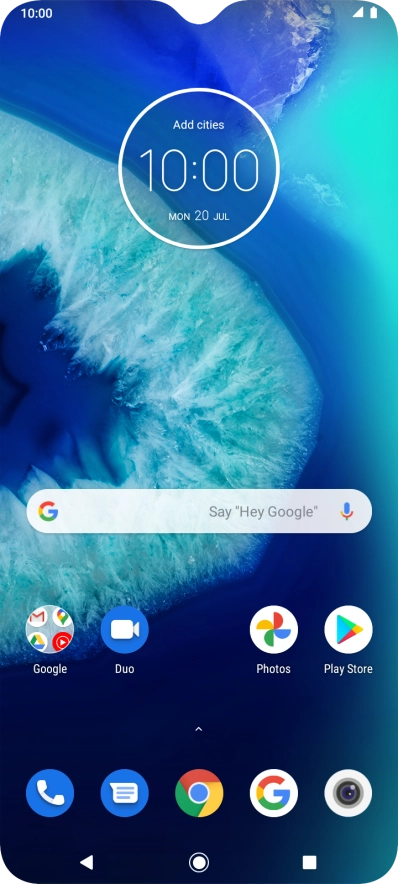
Return to the home screen

Press the Home key to return to the home screen.

1 Find "Notifications"

Slide two fingers downwards starting from the top of the screen.
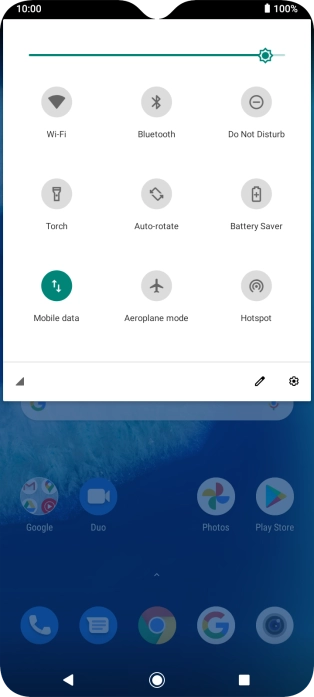
Press the settings icon.
Press Apps & notifications.
Press See all apps.
Press the required app.
Press Notifications.

2 Turn notifications on or off

Press the indicator next to "Show notifications" to turn the function on or off.

3 Return to the home screen

Press the Home key to return to the home screen.

Did this solve the problem?

Yes - All solved No - Go to next cause

Get information on...

Or choose...