

OnePlus Nord 2 5G
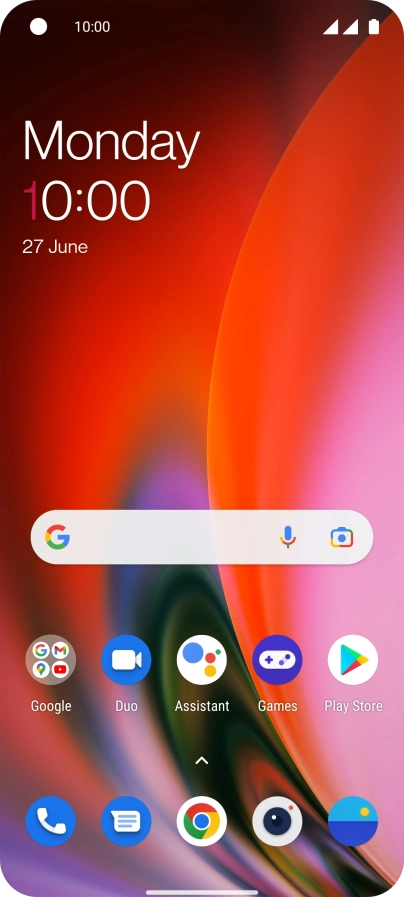
Find "Add fingerprint"
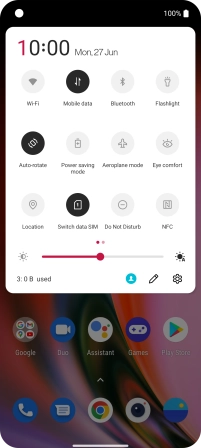
Slide two fingers downwards starting from the top of the screen.
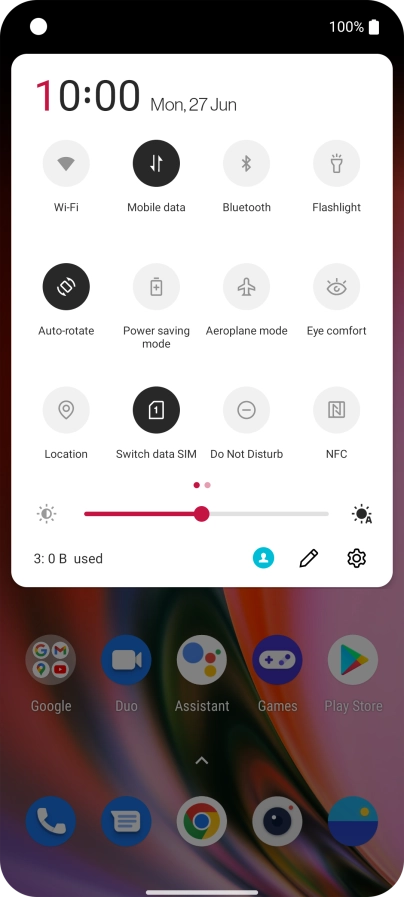
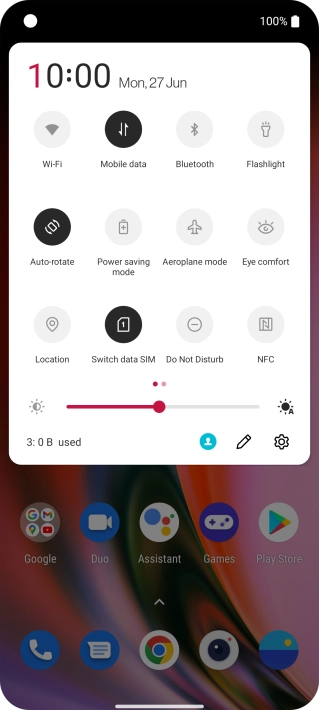
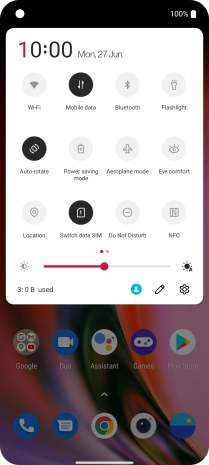
Find "Add fingerprint"
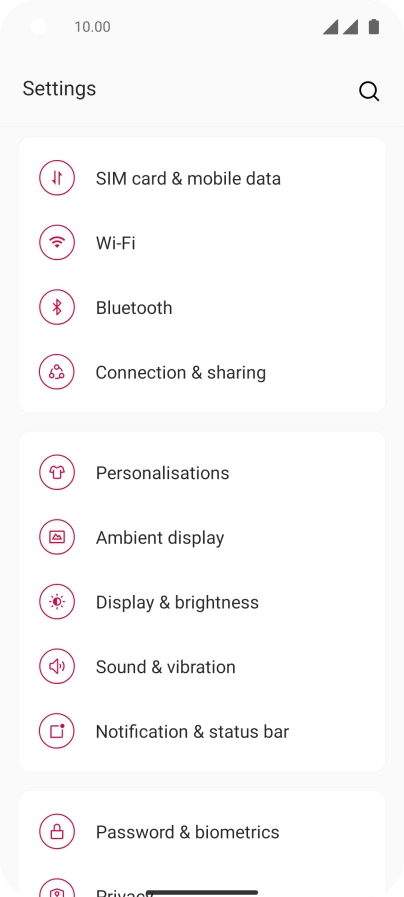
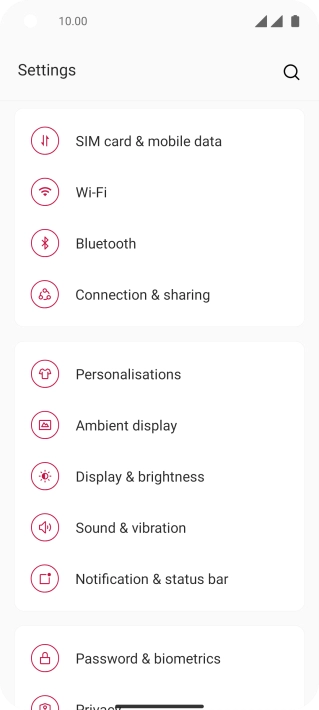
Press the settings icon.
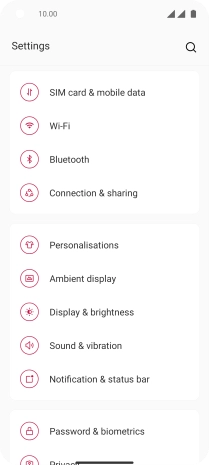
Find "Add fingerprint"
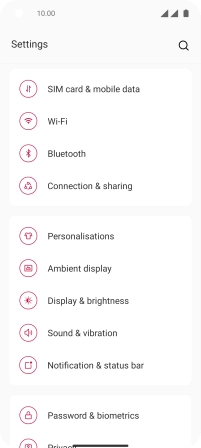
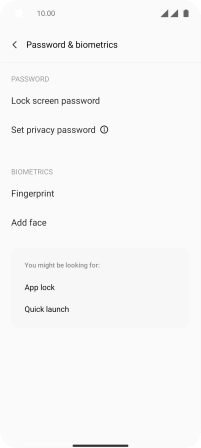
Press Password & biometrics.
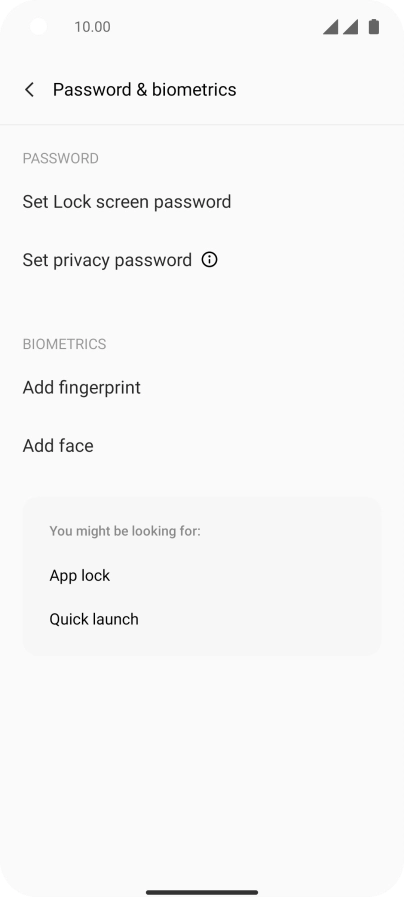
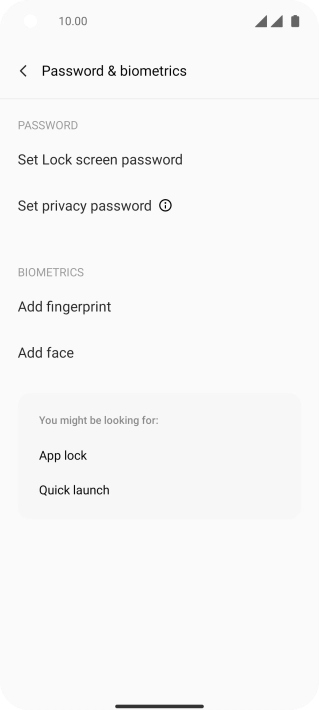
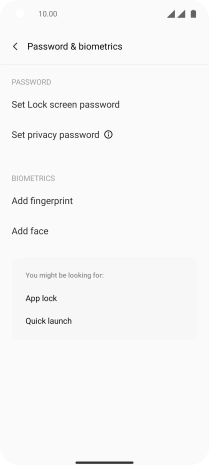
Find "Add fingerprint"
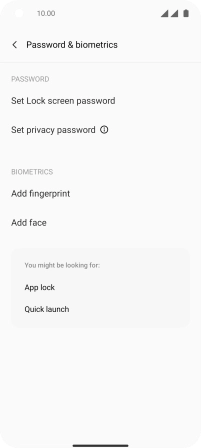
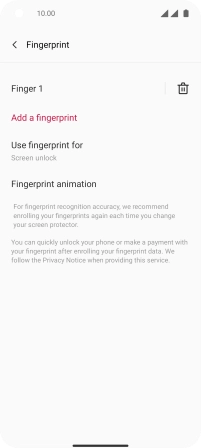
Press Add fingerprint.
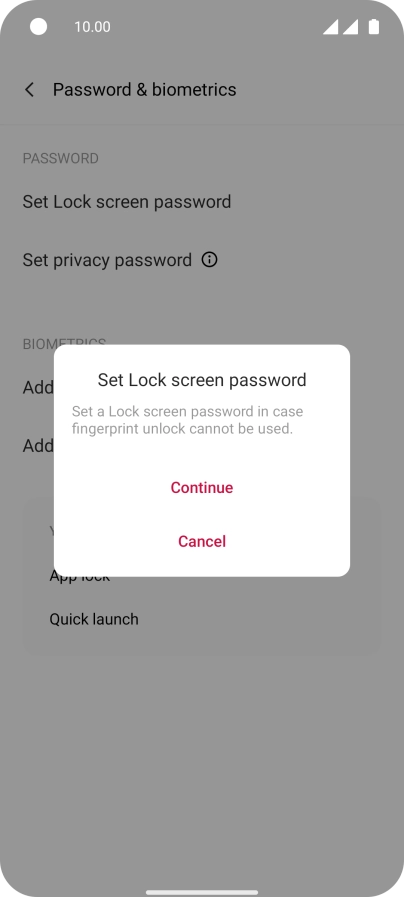
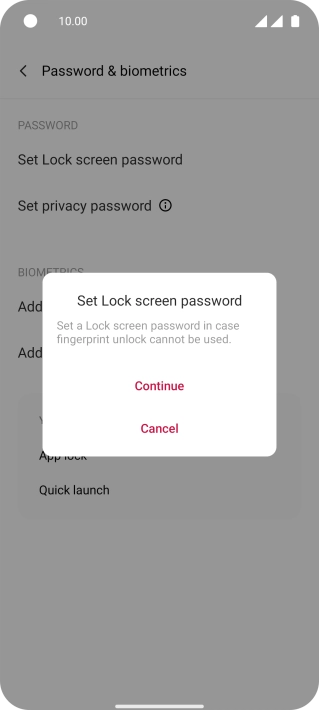
Create phone lock code using a fingerprint
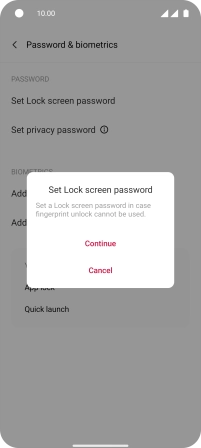
Press Continue.
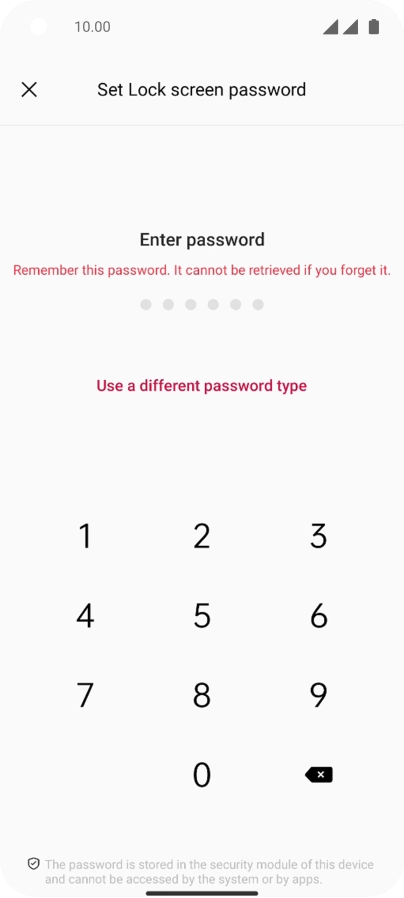
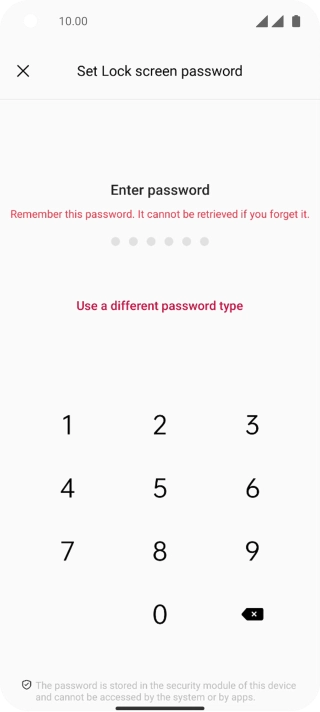
Create phone lock code using a fingerprint
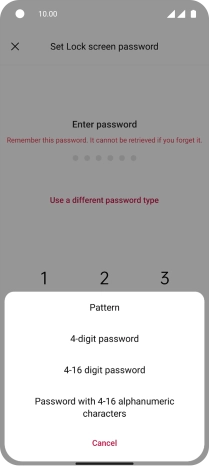
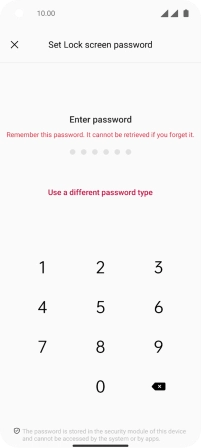
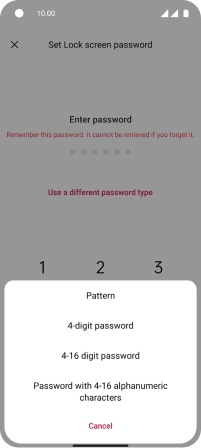
Press Use a different password type.
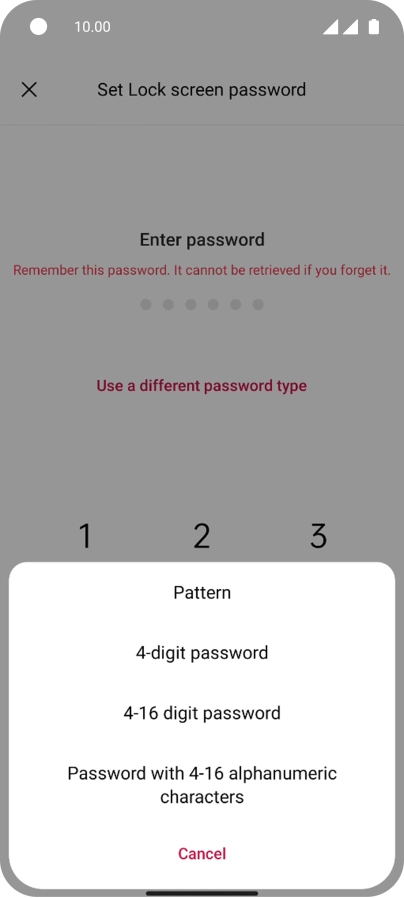
Create phone lock code using a fingerprint
Press the required phone lock code and follow the instructions on the screen to create an additional phone lock code.
Create phone lock code using a fingerprint
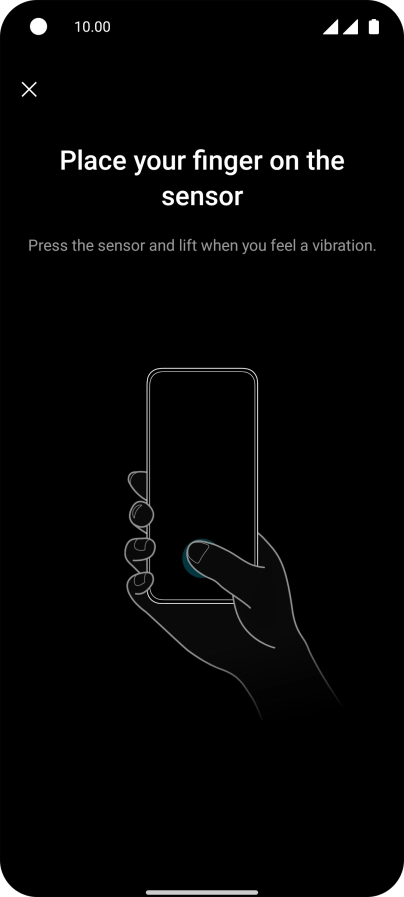
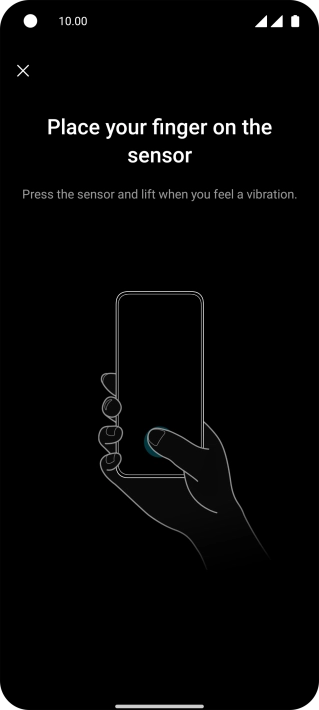
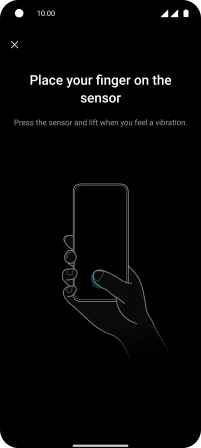
Follow the instructions on the screen to create the phone lock code using your fingerprint.
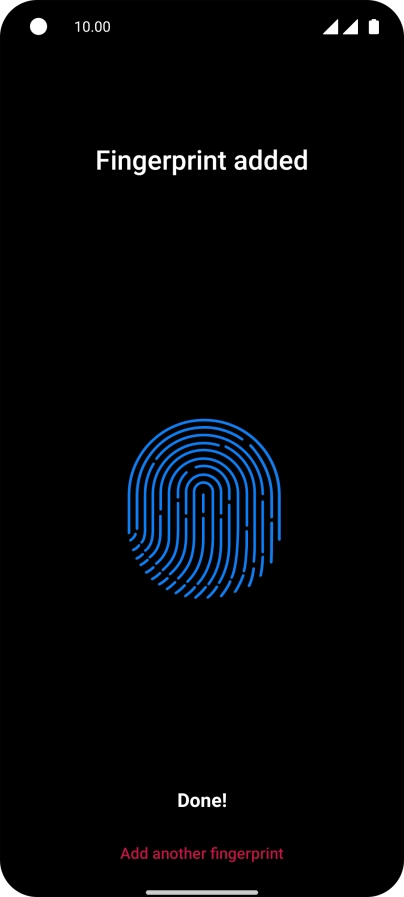
Create phone lock code using a fingerprint
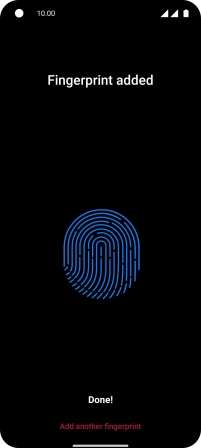
Press Done!.
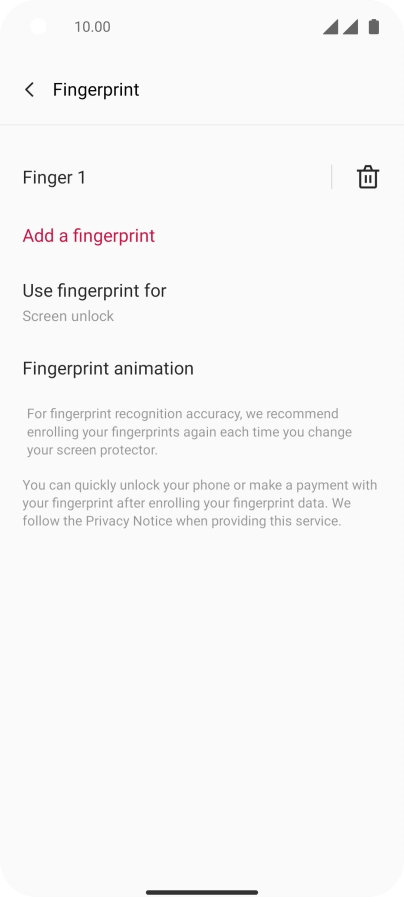
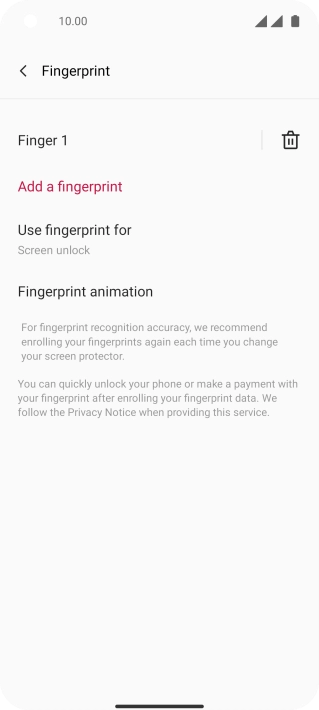
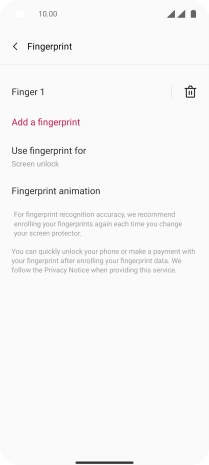
Create phone lock code using a fingerprint
Press arrow left.
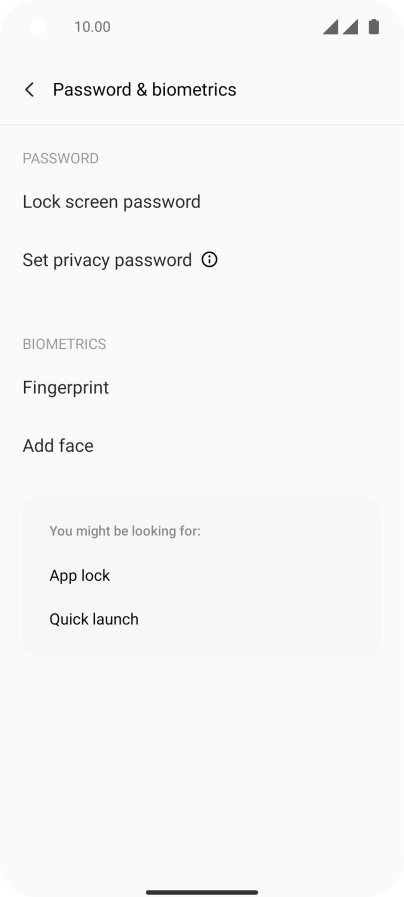
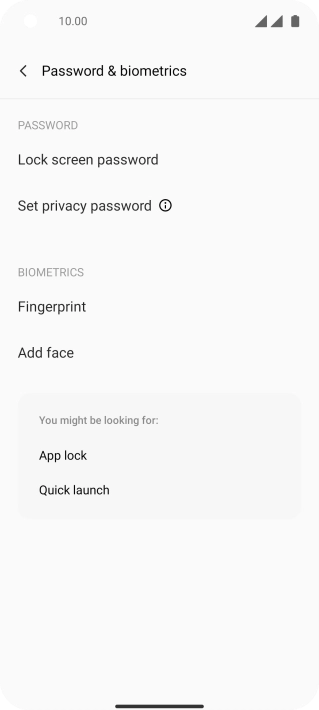
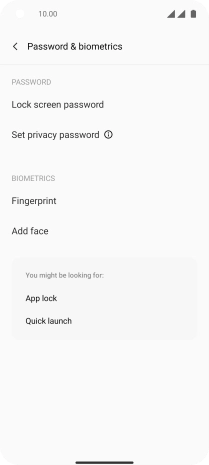
Turn off use of phone lock code
Press Lock screen password and key in the additional phone lock code you created earlier.
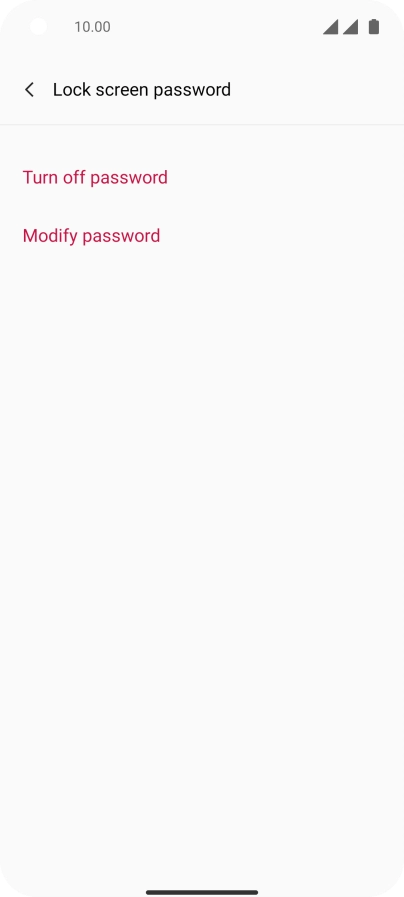
Turn off use of phone lock code
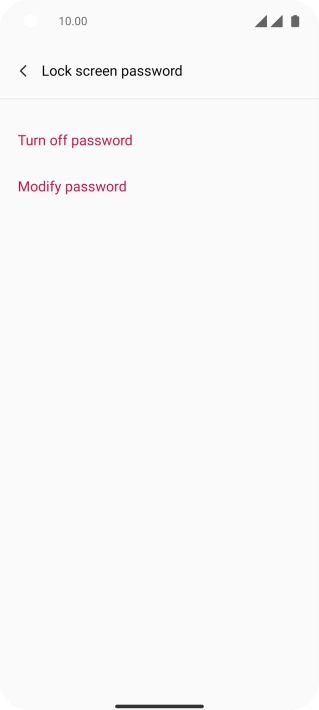
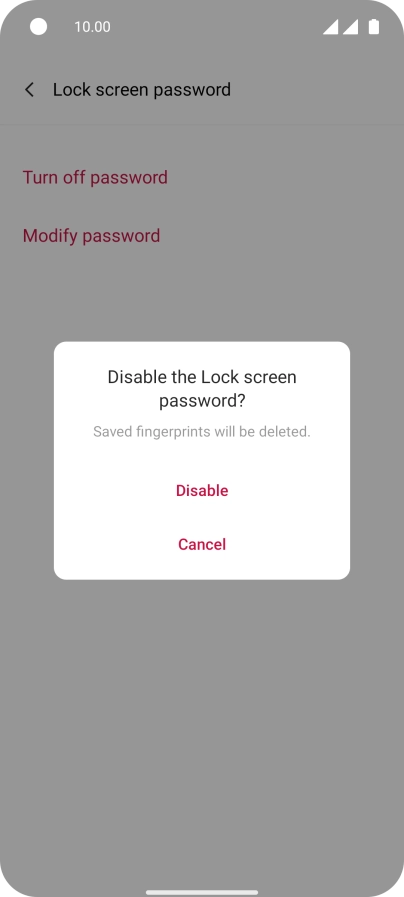
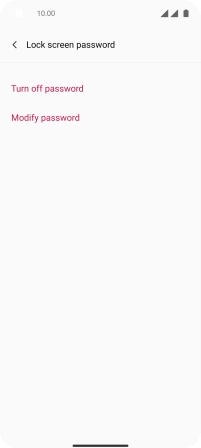
Press Turn off password.
Turn off use of phone lock code
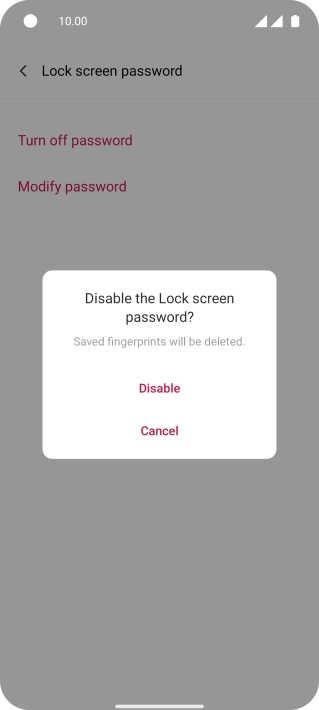
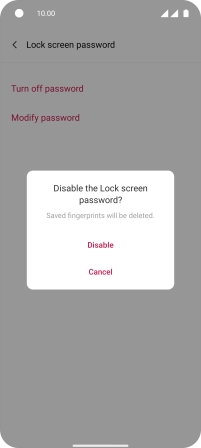
Press Disable and key in the additional phone lock code you created earlier.
Return to the home screen
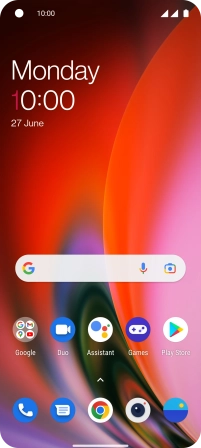
Slide your finger upwards starting from the bottom of the screen to return to the home screen.
1 Find "Add fingerprint"
2 Create phone lock code using a fingerprint
3 Turn off use of phone lock code
4 Return to the home screen


Get the App

